

Watching movies on an iPad without Wi-Fi is completely possible, and the experience can be just as smooth as streaming – if you prepare the content ahead of time or use features built for offline viewing. Whether you’re traveling, commuting, camping, or simply trying to save data, the iPad offers several reliable methods to enjoy movies offline. Apple has optimized iPadOS for local playback, making downloaded and transferred content easy to access through apps like Apple TV, Files, and third-party streaming platforms.
This guide breaks down the best ways to watch movies on iPad without WiFi, explains the pros and limitations of each method.

Table of Contents
Download Movies From Streaming Services for Offline Viewing
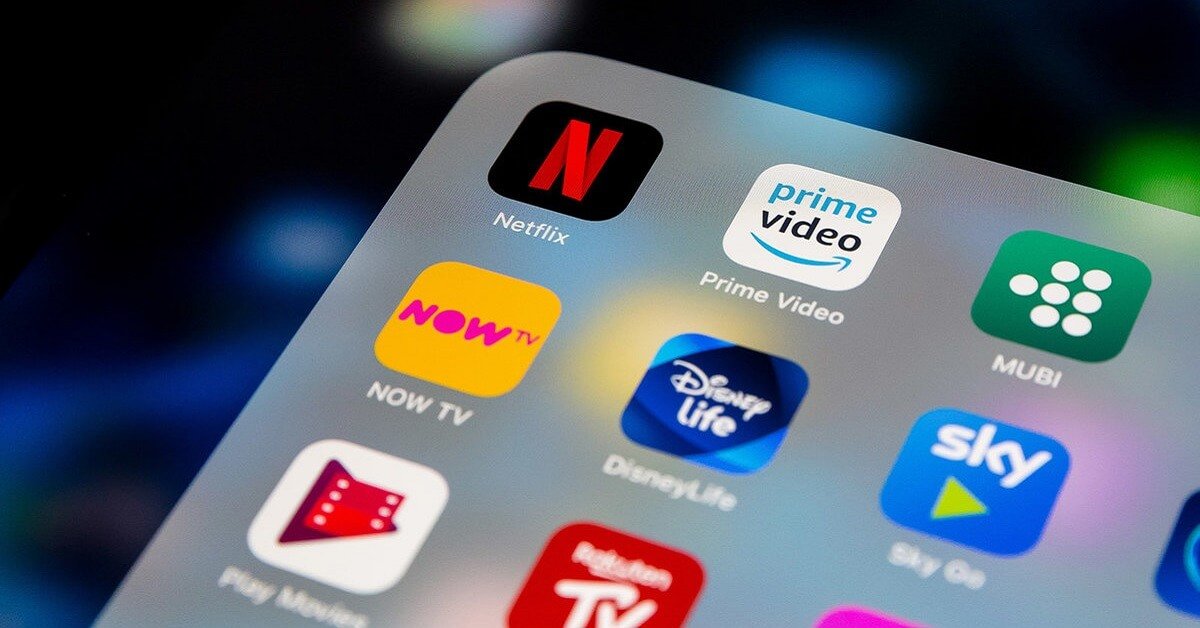
Most major streaming services allow users to download movies directly onto the iPad. Once downloaded, no Wi-Fi or cellular data is required. Platforms like Netflix, Disney+, Amazon Prime Video, YouTube Premium, HBO Max, and Hulu support offline playback through their apps. The process typically involves selecting the movie, tapping the download icon, and waiting for the file to store locally.
Downloaded videos have several advantages: they load instantly, play without buffering, and maintain consistent quality even in areas with no signal. Storage space is the only limitation, especially with long 4K or HD titles. For travelers or frequent offline users, choosing a larger-capacity iPad or managing downloads regularly helps avoid storage issues.
Buy or Rent Movies From the Apple TV App
Another dependable way to watch movies offline is through the Apple TV app. Movies purchased or rented through Apple can be downloaded directly onto the iPad. The app provides high-quality versions, including HD and 4K (downscaled appropriately based on device), and the files remain accessible offline until the rental period ends or until you delete them.
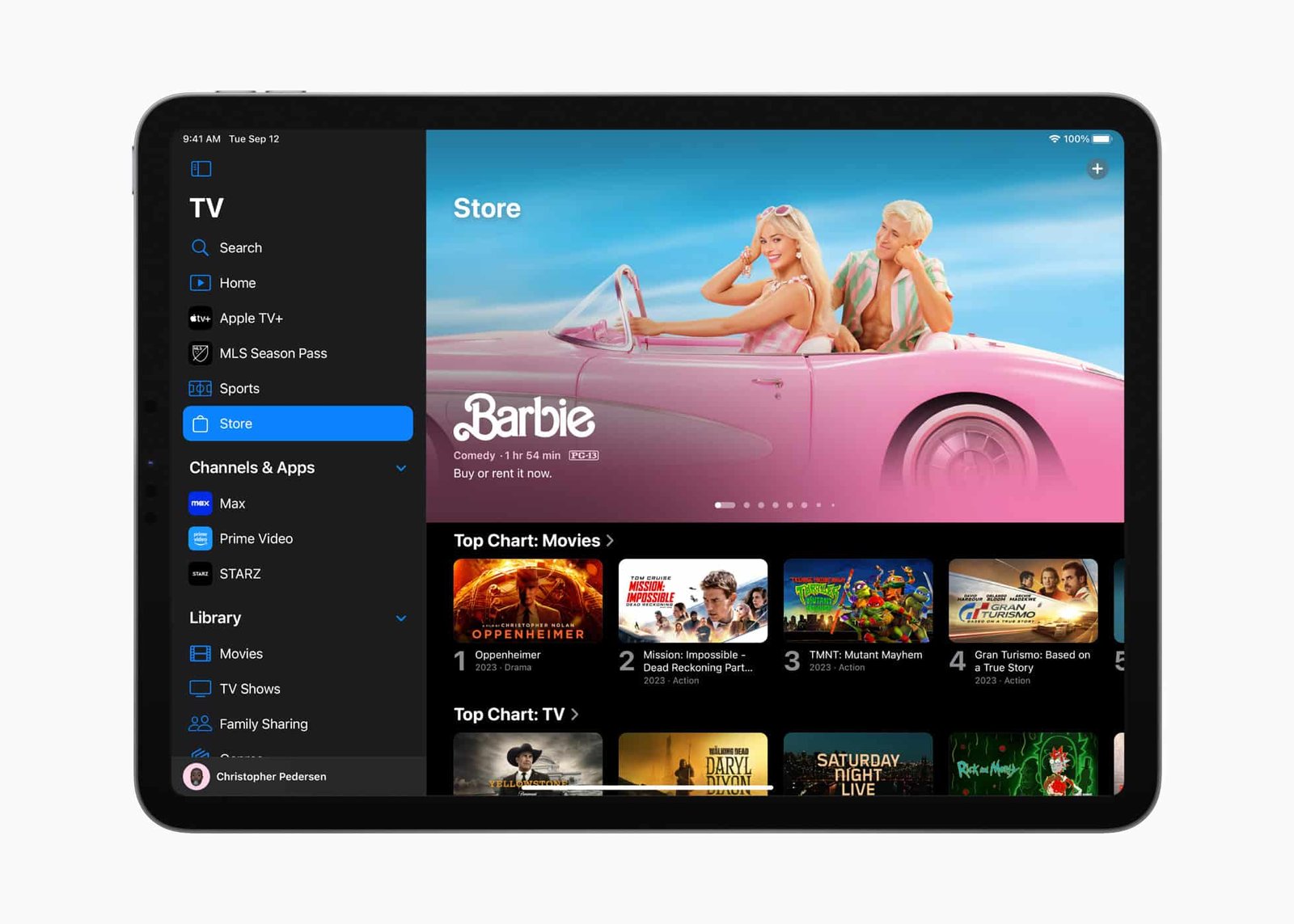
The Apple TV app integrates seamlessly with iPadOS, offering well-organized libraries, subtitle options, and download quality controls. If you’re building a permanent offline collection, purchasing movies through Apple ensures long-term ownership and easy access across all Apple devices via iCloud.
Transfer Movies From a Computer to the iPad
Users with digital movie files such as MP4, MOV, or MKV formats can transfer them to their iPad for offline viewing. This method works well for personal collections, recorded videos, downloaded DRM-free content, or home media libraries.
Files can be transferred using Finder on macOS, iTunes on Windows, or through third-party apps like VLC. After transferring, the movies can be accessed in the Files app or within a playback app such as VLC, Infuse, or Plex (local mode). This approach is ideal for people who want complete control over movie formats, subtitles, and storage organization.
Use a Third-Party Player App With Local Media Support
Apps like VLC, Infuse, and PlayerXtreme are known for their ability to handle offline video playback effortlessly. They support a wide range of video formats, including those that the native Apple TV or Photos app might not recognize.
These apps allow users to import movies through AirDrop, cloud storage, USB drives, or local transfer from a computer. Once imported, movies stay available offline indefinitely. VLC and Infuse are particularly useful for users who watch high-resolution or large-file movies because they optimize playback smoothly on the iPad’s hardware.
Download Videos From Cloud Storage Before Going Offline
If your movies are stored in cloud services like Google Drive, Dropbox, OneDrive, or iCloud Drive, you can download them to the iPad for offline access. Downloading ensures the file becomes available in the Files app or within the cloud provider’s app, even without internet.
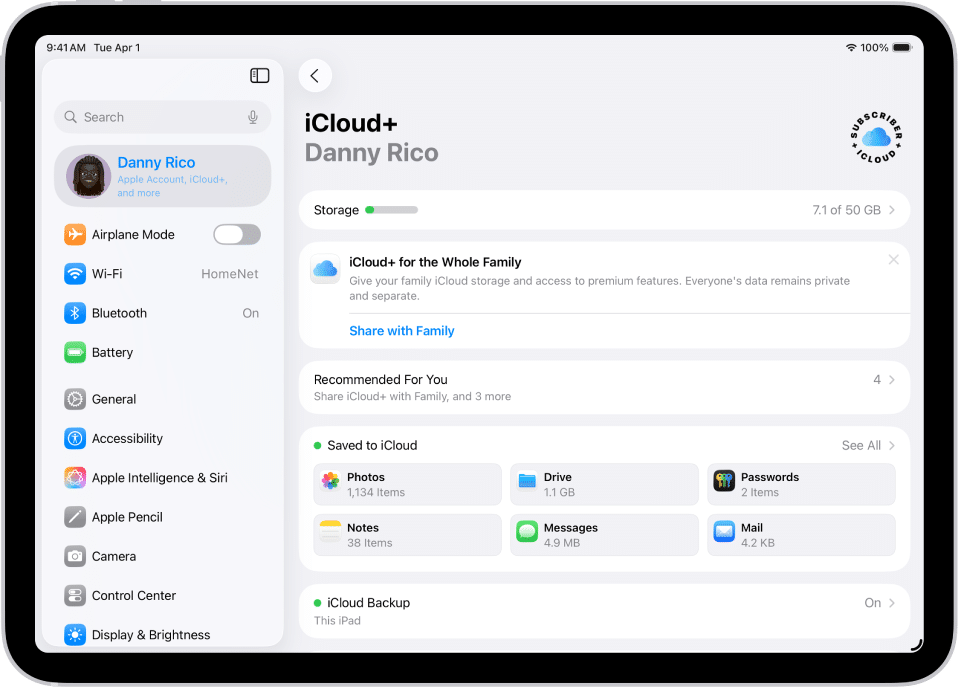
This method is handy when your media library lives online but you want to ensure access while traveling. Just remember that downloaded cloud files can occupy significant storage, so plan ahead if you intend to bring multiple long movies with you.
Use a Portable Media Drive or External Storage
Some portable SSDs and wireless drives like the SanDisk Wireless Stick or WD My Passport Wireless—allow you to store large movie libraries and stream them to your iPad without Wi-Fi. These devices create their own local wireless networks or connect directly via USB-C.
When connected, the iPad can access and play stored movies even in offline environments like planes or road trips. This is especially useful for users who want to carry dozens of movies without filling internal iPad storage.
Use Screen Recording (For Personal, Non-Copyrighted Content Only)
For personal videos, such as home recordings or screen captures of content you own, the built-in iPad screen recording tool can save videos locally. This method is not intended for copying copyrighted streaming content those platforms block recording and downloading for copyright protection. Use this option only for personal or non-protected media.
Watching Movies Offline: Which Method Is Best?
Choosing the best offline movie method depends on your needs. Streaming service downloads are the most convenient for casual entertainment; Apple TV purchases offer the highest quality; PC-to-iPad transfers give complete control; and local apps like VLC handle complex formats with ease. Users with large media collections often combine multiple methods, ensuring flexibility whether they’re at home, traveling, or working remotely.
Frequently Asked Questions
Do downloaded movies work in Airplane Mode?
Yes. Once downloaded, movies from Apple TV, Netflix, Prime Video, and other services work perfectly in Airplane Mode.
How much storage do offline movies use?
HD movies can range from 1–3GB, while 4K downloads may exceed 5–10GB depending on the service and compression.
Can I watch movies offline with a streaming subscription alone?
Yes, as long as the service supports offline viewing and you download the movie before losing Wi-Fi.
Do Apple TV rentals work offline?
Yes, but you must start watching within the rental window and complete it within the allowed viewing period.
What’s the easiest method for beginners?
Downloading directly from Netflix, Disney+, or Apple TV is the simplest and most user-friendly option.
Conclusion
The best ways to watch movies on an iPad without Wi-Fi involve downloading content in advance or using apps and storage tools that support offline media playback. Whether you rely on streaming service downloads, Apple TV purchases, computer transfers, or local media players, the iPad offers a smooth and flexible offline viewing experience. With thoughtful preparation, you can enjoy uninterrupted entertainment anywhere on flights, during commutes, or in places where Wi-Fi is limited or unavailable.
You can also check out the best tablets for watching movies with or without WiFi and the Internet.

Ben Scott is a prominent technology journalist and reviewer, specializing in tablet devices. He is known for his comprehensive and unbiased reviews of tablets from various manufacturers.
With a deep understanding of tablet technology, including hardware components, operating systems, and software applications, Scott provides clear and informative reviews accessible to readers of all levels of technical expertise.
His attention to detail and in-depth analysis have earned him a loyal following of readers.