

Restoring an iPad without iTunes is easy thanks to modern iPadOS features, cloud-based erase tools, and Apple’s transition away from computer-dependent device management. Whether your iPad is slowing down, malfunctioning, stuck on the Apple logo, or you need a clean reset for security reasons, you can restore it using several reliable methods, none of which require the old iTunes software.
This guide explains every method for restoring an iPad without iTunes and now includes step-by-step instructions for each option.
Table of Contents
Different Methods To Restoring an iPad Without iTunes
Method 1: Restore Your iPad Using Settings (Easiest & Most Common Method)
Restoring an iPad from the Settings app is the fastest way to wipe the device and return it to factory condition. This method works only when the iPad powers on and allows you to navigate menus.
How to restore from Settings
- Open Settings.
- Tap General.
- Scroll down and select Transfer or Reset iPad.
- Tap Erase All Content and Settings.
- Enter your passcode when prompted.
- Confirm the erase request and sign out of your Apple ID.
- Wait for the iPad to reset and reboot.
After restarting, the device loads the setup screen, where you can configure it as new or restore from iCloud.
Method 2: Restore Using iPadOS Recovery Mode (Using Finder, Not iTunes)
Recovery Mode is necessary when the iPad is unresponsive, frozen, stuck on the Apple logo, or fails to boot normally. Finder replaces iTunes on macOS Catalina and newer, so this remains an iTunes-free restoration.
How to restore using Recovery Mode
- Connect your iPad to a Mac using a USB-C or Lightning cable.
- Open Finder and select your iPad from the sidebar.
- Enter Recovery Mode:
- For iPads with Face ID:
Press and release Volume Up, then Volume Down, then hold Top button until the Recovery Mode screen appears. - For iPads with Home button:
Hold the Home button + Top button until Recovery Mode appears.
- For iPads with Face ID:
- Finder will display a prompt with Restore or Update.
- Click Restore.
- Finder downloads the latest iPadOS and reinstalls it on your device.
- After completion, the iPad restarts with factory settings restored.
Method 3: Restore Your iPad Using iCloud (Remote Erase)
This method is ideal when the iPad is lost, stolen, or you simply don’t have access to it physically. iCloud can erase the device as soon as it connects to the internet.
How to restore using iCloud
- Go to iCloud.com or open the Find My app on another Apple device.
- Sign in with the Apple ID linked to the iPad.
- Select All Devices and choose your iPad.
- Tap Erase iPad.
- Confirm the erase command.
- The iPad resets itself the moment it comes online.
After the erase completes, your iPad will stay linked to your Apple ID until you remove it manually, protecting it from unauthorized use.
Method 4: Restore Using Apple Configurator (Advanced Method)
Apple Configurator is designed for IT administrators but works perfectly well for individual users who need deep-level restores. It is especially useful for iPads stuck in problematic system loops.
How to restore using Apple Configurator
- Install Apple Configurator 2 from the Mac App Store.
- Connect your iPad to the Mac with a compatible cable.
- Launch Configurator and select the iPad from the device list.
- Click Actions on the top menu.
- Choose Restore.
- Confirm that you want to wipe and reinstall iPadOS.
- Configurator downloads firmware and performs a full restoration.
- After the process, your iPad restarts in factory condition.
Configurator is the most powerful method available without iTunes and can fix deeper firmware problems that Finder cannot.
Method 5: Restore Using IPSW Firmware Files (Manual Reinstallation)
Advanced users sometimes prefer installing iPadOS manually through an IPSW file. This method does not use iTunes but relies on Finder or Configurator for firmware installation.
How to restore using an IPSW file
- Download the correct IPSW firmware file for your iPad from a trusted source such as Apple’s IPSW servers.
- Connect your iPad to a Mac.
- Enter Recovery Mode (using the same instructions listed earlier).
- Open Finder and select your iPad.
- Hold Option (⌥) and click Restore.
- Select the downloaded IPSW file.
- Finder installs the firmware and restores the device.
- The iPad restarts once the installation finishes.
This method is useful for troubleshooting corrupted software or installing a specific iPadOS version that Apple still signs.
Method 6: Restore Using Third-Party Repair Tools (Beginner-Friendly Option)
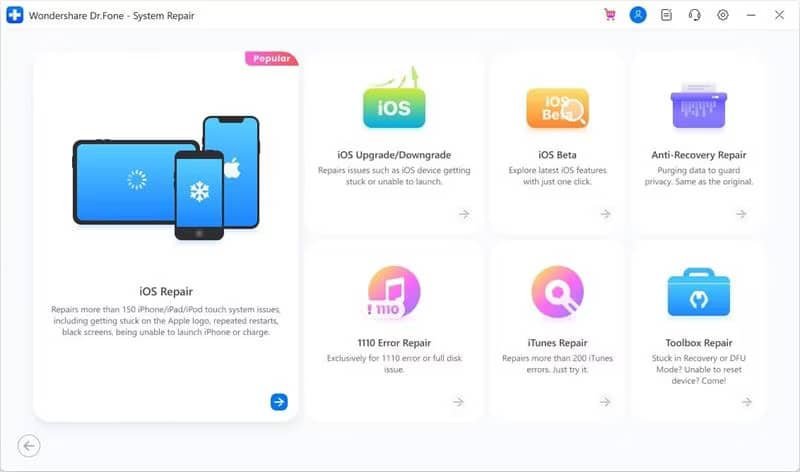
Several reputable apps can restore or repair an iPad without iTunes or Finder. These tools guide users through recovery steps automatically and use IPSW firmware behind the scenes.
How to restore using third-party software
- Download a trusted repair tool such as ReiBoot, AnyFix, Dr.Fone, or Fixppo.
- Install the program on your Mac or Windows PC.
- Plug your iPad into the computer.
- Open the tool and choose an option such as Factory Reset, Standard Repair, or Deep Repair.
- Allow the software to download the appropriate iPadOS firmware.
- Click Restore or Repair to start the process.
- Wait for your iPad to reboot with fresh software installed.
These apps provide easy-to-follow interfaces, making them ideal for users uncomfortable with Recovery Mode or manual IPSW installation.
Choosing the Right Restoration Method
The best restoration method depends on the iPad’s condition and your available tools. When the device is operational, restoring through Settings is the most convenient option. For severe software corruption or device boot failures, Recovery Mode or Apple Configurator offers deeper repair capability. Remote users benefit from iCloud erase, while advanced users may prefer IPSW firmware installation for full control. Third-party tools provide an accessible alternative when built-in methods fail or feel too technical.
Frequently Asked Questions
Does restoring an iPad remove Activation Lock?
No. You must enter the Apple ID and password associated with the device after restoring.
Will a restore remove viruses or malware?
Yes. A full restore replaces the entire system and removes malicious software or corrupt data.
Can I restore an iPad without a passcode?
Yes, but you must use Recovery Mode, Configurator, or third-party repair tools.
Does restoring delete everything?
A full restore wipes all apps, settings, and data unless you restore from an iCloud backup afterward.
Conclusion
Restoring an iPad without iTunes is simple thanks to powerful iPadOS features, web-based tools, Finder-based recovery, and advanced utilities like Apple Configurator. Whether you’re fixing a stubborn software issue, preparing your device for sale, or resetting it for a fresh start, each method provides a direct and reliable way to return your iPad to factory condition – no iTunes required.
Wanted to know how to unlock your android tablet without losing data. So, check out this article.

Ben Scott is a prominent technology journalist and reviewer, specializing in tablet devices. He is known for his comprehensive and unbiased reviews of tablets from various manufacturers.
With a deep understanding of tablet technology, including hardware components, operating systems, and software applications, Scott provides clear and informative reviews accessible to readers of all levels of technical expertise.
His attention to detail and in-depth analysis have earned him a loyal following of readers.