

Low Power Mode on an iPad is a battery-saving feature designed to extend usage time by reducing system activity, limiting background tasks, and optimizing performance when the battery is running low. Apple originally introduced Low Power Mode on the iPhone, and it later expanded to iPadOS giving tablet users a reliable way to conserve battery life during travel, long work sessions, or situations where charging isn’t immediately available.
This guide explains what Low Power Mode does, how it affects your iPad, the best scenarios to use it, and multiple ways to enable or disable the feature.
Table of Contents
What Is Low Power Mode on an iPad?
Low Power Mode is a system-level power-saving function built into iPadOS. When activated, the iPad automatically reduces certain background processes and adjusts performance to maximize remaining battery life. Apple designed the feature to work intelligently, ensuring users still get a smooth experience while conserving energy.
Low Power Mode becomes especially helpful during travel, outdoor use, or long work periods where charging may not be available. Many users also prefer leaving it on all day to improve overall battery longevity.
How to Enable Low Power Mode on an iPad
Apple offers several convenient ways to turn Low Power Mode on or off. Each method works instantly and syncs across system settings.
Enable Low Power Mode Through Settings
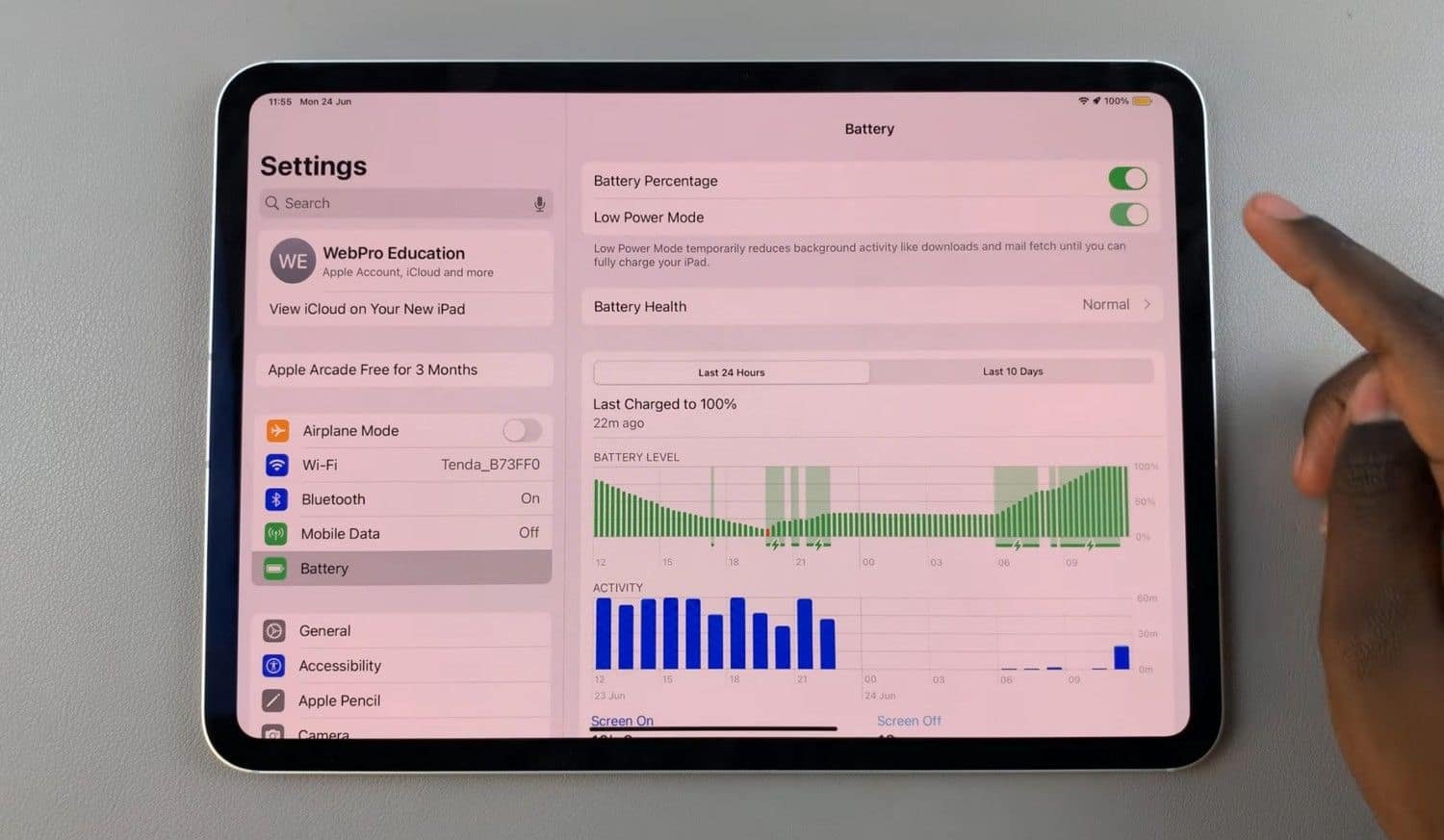
This is the most straightforward and accessible method for most users.
- Open Settings.
- Tap Battery.
- Toggle Low Power Mode on or off.
The battery icon turns yellow when the feature is active, giving you a quick visual indicator.
Enable Low Power Mode From Control Center
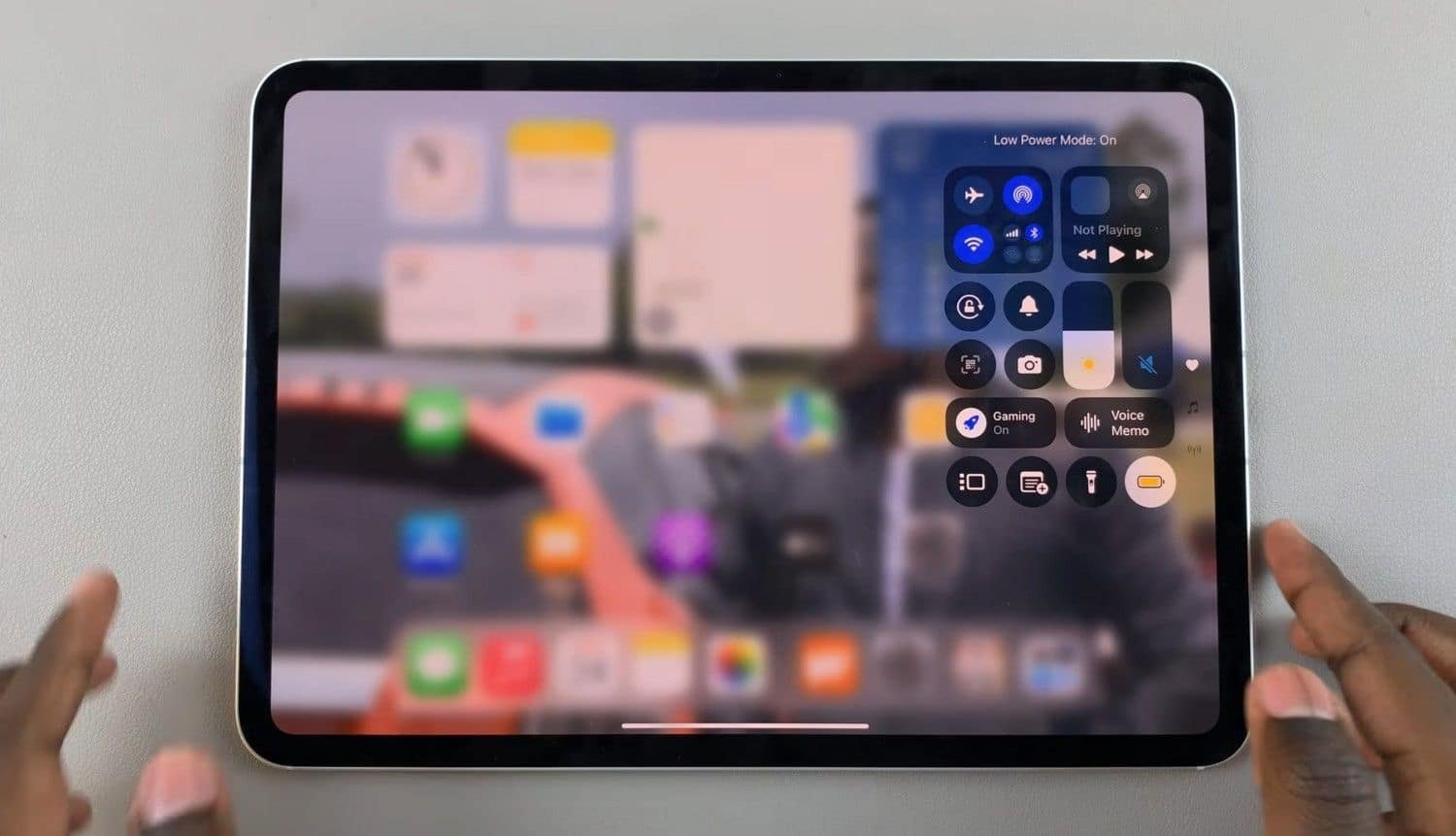
Adding a dedicated Low Power Mode button to Control Center makes switching the feature on and off instant—especially when traveling or working away from a charger.
To set it up:
- Open Settings.
- Go to Control Center.
- Tap Low Power Mode to add it to the shortcut panel.
After this, swipe down from the upper-right corner at any time and tap the Low Power Mode icon.
Enable Low Power Mode Using Siri
Siri offers the quickest hands-free method.
Simply say:
“Hey Siri, turn on Low Power Mode.”
Or:
“Turn off Low Power Mode.”
This is ideal when your hands are busy or you want to avoid navigating menus.
What Low Power Mode Does on an iPad
When enabled, Low Power Mode adjusts several system functions to slow battery drain. The changes are subtle during everyday use but significantly increase usage time especially on older devices or during demanding workflows.
What changes when Low Power Mode is on
- Reduces screen brightness and auto-lock time
- Lowers CPU and GPU performance during intensive tasks
- Pauses background app refresh
- Limits visual effects and animation intensity
- Suspends automatic email fetch
- Restricts iCloud Photos syncing
- Delays background tasks such as indexing and app updates
- Reduces refresh rates on compatible displays
These adjustments allow the battery to last longer without affecting essential functionality such as browsing, note-taking, video playback, and casual app use.
When Should You Use Low Power Mode?
Low Power Mode is flexible enough to use situationally or all day, depending on your needs.
Best scenarios to activate it
- Long flights, road trips, or commutes
- Outdoor work or travel where charging is limited
- Using the iPad for reading, writing, or note-taking
- Low battery alerts without immediate access to a charger
- Preserving battery health by keeping charge cycles shallower
Some users even leave Low Power Mode turned on permanently to reduce background activity and extend the overall life of the battery.
Does Low Power Mode Affect Performance?
Yes, but minimally in everyday tasks. iPadOS lowers processor and graphics performance only when necessary. Light usage activities like browsing, reading, streaming, watching movies or working in productivity apps feel virtually the same.
More demanding workflows such as video editing, gaming, or multitasking may run slightly slower. Still, Apple optimizes the system so the device remains responsive even when conserving power.
Low Power Mode vs. Regular Battery Optimization
Low Power Mode is different from Apple’s built-in battery optimization features. Optimization is always active in the background and focuses on long-term battery health, such as slowing charging above 80% or reducing peak chemical aging.
Low Power Mode, however, is a manual switch geared toward short-term power conservation.
Using both gives you the best combination of extended usage time and long-lasting battery lifespan.
Low Power Mode and iPad Battery Health
Low Power Mode helps preserve battery health indirectly by reducing system strain. Lowering performance, brightness, and background tasks decreases how often the battery hits high drain conditions.
It also encourages users to operate the iPad at moderate levels of activity, which may contribute to slower battery aging over years of use.
Frequently Asked Questions
Does an iPad automatically turn on Low Power Mode at 20% like an iPhone?
Yes. iPadOS offers the same automatic prompt at 20% and 10% battery levels.
Can Low Power Mode stay on permanently?
Yes. Unlike some battery features, Low Power Mode does not auto-disable at 80%. It stays enabled until you turn it off.
Does Low Power Mode affect charging speed?
Not significantly. The iPad charges at normal rates whether Low Power Mode is on or off.
Does Low Power Mode reduce screen quality?
No. It may dim the screen, but resolution and clarity remain unchanged.
Can apps override Low Power Mode?
No. Apps cannot disable Low Power Mode, but performance may scale back depending on power availability.
Conclusion
Low Power Mode on an iPad is highly effective battery-saving feature that reduces energy consumption by adjusting system performance, background tasks, and visual effects. Apple designed it to work seamlessly with everyday usage, so most users notice little difference in responsiveness while gaining significantly more battery life.
Whether you’re traveling, running low on power, or simply want to maximize efficiency, enabling Low Power Mode ensures your iPad lasts longer and performs reliably when battery life matters most.
Want to know more on how to turn on safe mode on your iPad.

Ben Scott is a prominent technology journalist and reviewer, specializing in tablet devices. He is known for his comprehensive and unbiased reviews of tablets from various manufacturers.
With a deep understanding of tablet technology, including hardware components, operating systems, and software applications, Scott provides clear and informative reviews accessible to readers of all levels of technical expertise.
His attention to detail and in-depth analysis have earned him a loyal following of readers.