

Yes, it is possible to connect an external webcam to an iPad, but only under certain conditions, specific app support, and compatible hardware setups. Apple has expanded USB-C functionality across modern iPads, which allows some external webcams to work for video calls, recordings, and livestreaming. However, the process is not as plug-and-play as on a Mac or PC. Understanding how to connect an external webcam to an iPad requires knowing which iPads support USB-C cameras, which apps recognize them, and what accessories you need.
This guide explains everything in a professional, editorial style – covering compatibility, setup steps, limitations, and the best alternatives if your webcam doesn’t work.
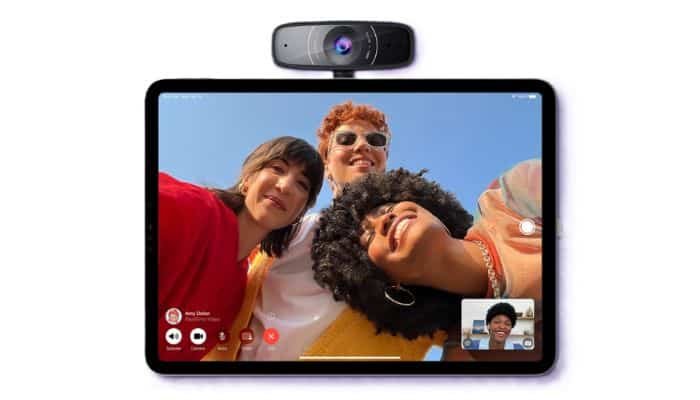
Table of Contents
Can You Connect an External Webcam to an iPad?
Yes, you can connect an external webcam to an iPad – but only iPads with USB-C support can use external cameras reliably. Lightning-based iPads do not support external webcam connections.
Modern iPad models that support USB-C (including the iPad Pro, iPad Air, iPad mini, and iPad 10th gen) can recognize certain webcams through a direct USB-C cable or a powered hub. When you connect an external webcam to an iPad, the iPad treats the webcam as a video input device, but only specific apps can access that external feed.
Apps like Zoom, Microsoft Teams, Webex, OBS-compatible streaming apps, and some video recording apps now support external webcams on iPadOS.
Native apps like FaceTime, Camera, and Photos still rely on the iPad’s built-in camera and do not switch to external webcams.
iPad Models That Support External Webcams
External webcam compatibility depends on USB-C support. The following iPads can connect an external webcam effectively:
- iPad Pro (11-inch & 12.9-inch, M-series and newer USB-C models)
- iPad Air (4th gen, 5th gen, 6th gen – USB-C models)
- iPad mini (6th gen)
- iPad (10th gen – USB-C)
Lightning-based models like the iPad 9, iPad mini 5, or older models cannot use external webcams because the Lightning port does not support standard USB video protocols.
What You Need to Connect an External Webcam to an iPad
To successfully connect an external webcam to an iPad, you may need:
1. A USB-C–to–USB-C cable
Modern webcams with native USB-C output can connect directly.
2. A USB-C hub or adapter
For webcams with USB-A connectors. Choose a hub that supports USB 3.0 data transfer, not just charging.
3. A powered USB hub (recommended for high-power webcams)
Some webcams draw more power than the iPad port can provide. A powered hub ensures the webcam receives stable current.
4. A compatible app
Not all apps recognize external webcams. Apps must support USB UVC (USB Video Class) input.
How to Connect an External Webcam to an iPad (Step-by-Step)
If you want to connect an external webcam to an iPad for video meetings, recording, or streaming, follow these steps:
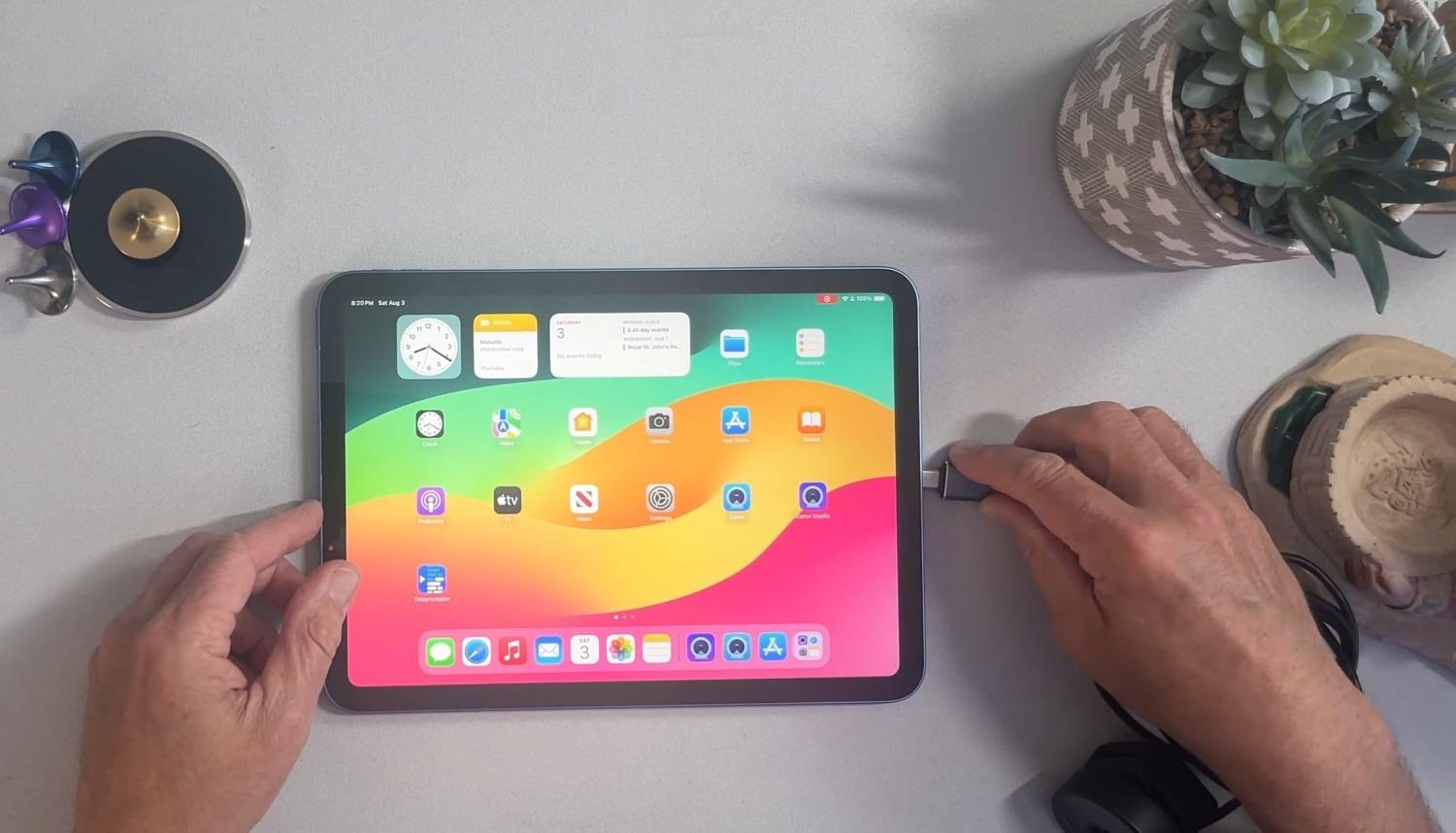
1. Plug Your Webcam Into the iPad’s USB-C Port
- If your webcam uses USB-C, plug it directly.
- If it uses USB-A, connect using a USB-C hub.
Wait a few seconds for the iPad to detect the device.
2. Open a Supported App
Apps that support external webcams include:
- Zoom
- Teams
- Webex
- Riverside
- OBS-compatible broadcasting apps
- Filmic Pro (varies by version)
- Capture Studio apps that support UVC input
Open the app and check video settings.
3. Select the Webcam as the Input Source
Inside the app:
- Open Settings → Video
- Choose the webcam under Camera
- A live preview should appear instantly
If the webcam does not appear, try a different hub or a powered connection.
4. Adjust Webcam Settings if Supported
Some apps let you adjust:
- Resolution
- Frame rate
- Exposure
- Zoom
- Color temperature
These adjustments depend on the webcam and the app.
5. Mount Your Webcam Properly
For the best video angle:
- Attach it to a stand or tripod
- Position it above the iPad for a natural eyeline
- Use proper lighting to enhance clarity
Once mounted, your external webcam becomes your main input within supported apps.
Limitations When Connecting an External Webcam to an iPad
While it is possible to connect an external webcam to an iPad, there are limitations:
1. FaceTime and Apple Camera App Do Not Support External Webcams
Apple restricts camera switching in these apps.
2. Not All Webcams Work
Higher-end webcams like mirrorless cameras connected via capture cards may require:
- Powered USB hubs
- USB-C capture cards
- UVC video support
Non-UVC devices will not work.
3. External webcams cannot replace the iPad’s system camera
iPadOS does not allow system-wide switching.
4. Some apps may force default camera selection
A few third-party apps still don’t allow choosing an external video source.
5. Some older webcams require drivers
iPadOS cannot install drivers, so unsupported webcams will not work.
Best Webcams That Work with an iPad (UVC Compatible)
If you’re planning to connect an external webcam to an iPad, choose UVC-compatible models:
- Logitech C920 / C922 / StreamCam
- Razer Kiyo / Kiyo Pro
- Anker PowerConf C300
- Elgato Facecam (depending on app support)
- Insta360 Link (UVC mode only)
These webcams work with most broadcasting and meeting apps via USB-C.
Alternative Ways to Use External Cameras With an iPad
If your webcam isn’t compatible, these workarounds help:
1. Use Your iPhone as a Webcam for iPad Apps
Apps like EpocCam, Camo, or NDI streaming tools let you relay your iPhone camera to your iPad.
2. Use a DSLR or mirrorless camera through a USB-C capture card
Many creators use:
- Elgato Cam Link
- UVC capture cards
- USB-C HDMI converters
App support varies, but livestreaming apps often accept these inputs.
3. Use a cloud recording platform
Platforms like Riverside or StreamYard sometimes support external video sources more reliably.
Troubleshooting: External Webcam Not Working on iPad
If your iPad fails to recognize the webcam:
Check USB-C Cable and Hub
- Use a data-enabled cable, not a charging-only cable.
Try a Powered Hub
- Especially for 4K webcams or DSLR cameras.
Restart the App
- Some apps detect webcams only at launch.
Restart the iPad
- Clears temporary USB cache issues.
Test in a Different Supported App
- Zoom or Riverside are the most reliable for webcam detection.
Frequently Asked Questions
Can you connect an external webcam to an iPad using a Lightning port?
No. Lightning iPads do not support UVC webcams.
Do all USB-C iPads support webcams?
Yes, but app support varies.
Does the iPad’s Camera app work with an external webcam?
No. It only uses the built-in cameras.
Can I livestream from an iPad using an external webcam?
Yes, if the streaming app supports UVC input.
Can I use a GoPro or DSLR as a webcam on an iPad?
Yes, through USB-C capture cards or UVC modes, depending on app support.
Conclusion
It is fully possible to connect an external webcam to an iPad when using a USB-C iPad model and a compatible UVC webcam, but functionality depends entirely on the apps you use. While FaceTime and the Camera app still rely on the built-in camera, third-party apps such as Zoom, Teams, Webex, Riverside, and livestreaming tools offer direct webcam support.
If your workflow involves video meetings, remote teaching, streaming, or professional filming, using an external webcam with an iPad can significantly improve video quality provided you choose the correct hardware and apps.

Ben Scott is a prominent technology journalist and reviewer, specializing in tablet devices. He is known for his comprehensive and unbiased reviews of tablets from various manufacturers.
With a deep understanding of tablet technology, including hardware components, operating systems, and software applications, Scott provides clear and informative reviews accessible to readers of all levels of technical expertise.
His attention to detail and in-depth analysis have earned him a loyal following of readers.