
Yes, you can send an SMS from iPad to Android devices, but only when your iPad is linked to an iPhone using Apple’s Text Message Forwarding system. The iPad cannot send true carrier-based SMS on its own. The iPad sends messages through iMessage by default, and iMessage works only between Apple devices. Android phones do not support iMessage, so the only way to send SMS from iPad to Android is through an iPhone that relays the message using your carrier.
This guide explains exactly how to send SMS from iPad to Android devices, how to set it up, limitations, troubleshooting, and the differences between iMessage and SMS.

Table of Contents
Why iPad Cannot Send SMS Directly
SMS is a carrier-based service. iPads do not have SMS-capable radio technology unless they connect through an iPhone.
iPad models with cellular support only handle:
- Data
- eSIM
- Internet browsing
- App connections
They do not include the hardware required to send native SMS. iPads only support cellular and WiFi data transmission, they can only make VoIP (Voice over Internet Protocol) calls. That is why iPads require a paired iPhone to send carrier text messages.
How SMS From iPad to Android Actually Works
When sending a message to an Android device:
- The iPad creates the message
- The message travels to the paired iPhone over Wi-Fi or Bluetooth
- The iPhone’s carrier network sends the SMS on behalf of the iPad
This system is called Text Message Forwarding and exists inside the Apple Continuity framework.
How to Enable SMS From iPad to Android Devices
Follow these steps on both devices to activate SMS support.
1. Sign In With the Same Apple ID
Your iPhone and iPad must use one Apple ID.
Steps
- Open Settings on iPad
- Tap your Apple ID
- Confirm the same Apple ID appears on your iPhone
Apple uses your shared Apple ID to sync messaging permissions across devices.
2. Enable iMessage on Both Devices
iMessage must be active before SMS forwarding works.
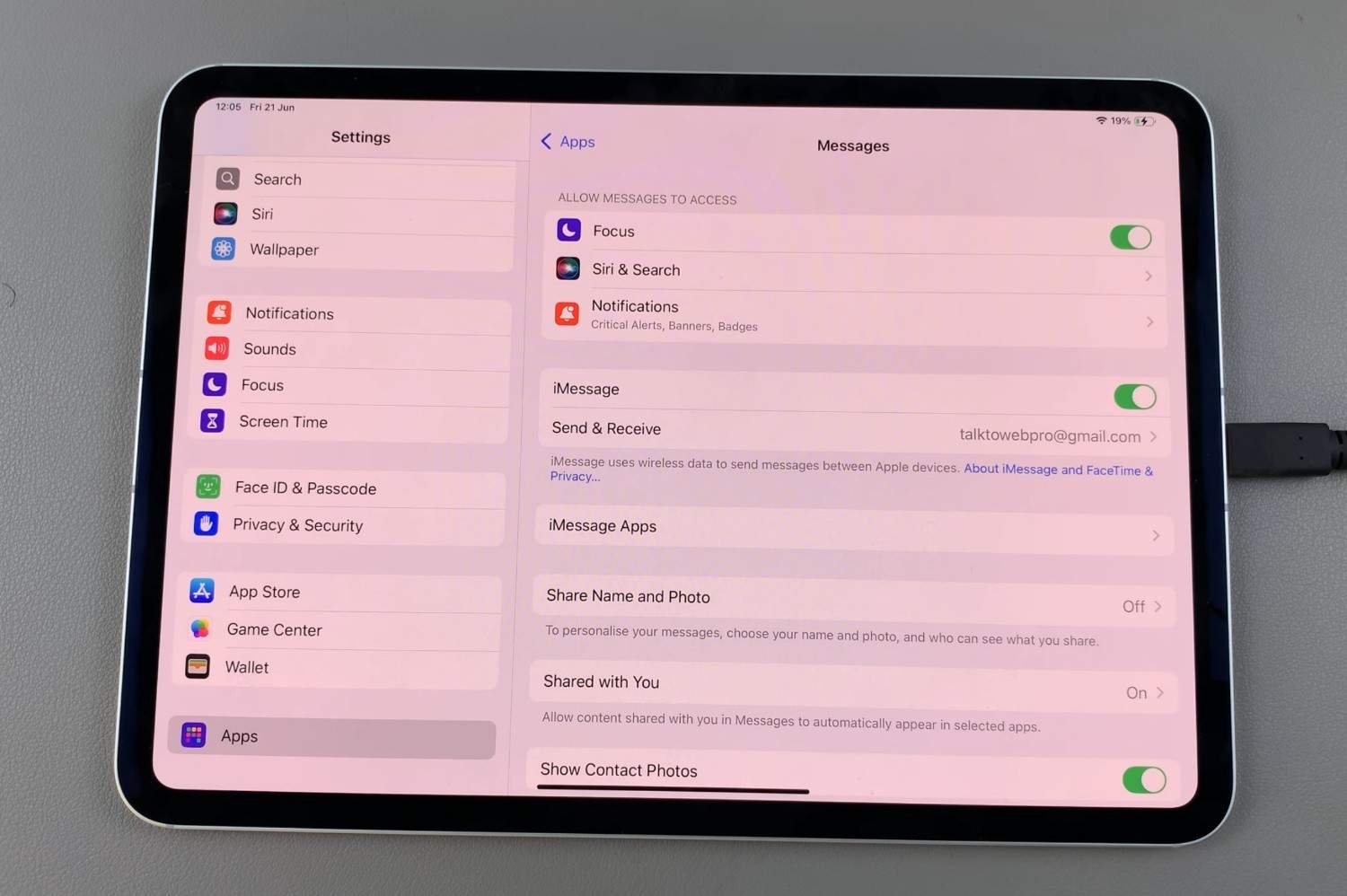
Steps
- Open Settings → Messages
- Turn on iMessage
- Wait for activation
iMessage activation links your number and email addresses for cross-device contact.
3. Enable Text Message Forwarding on iPhone
This is the most important setup step.
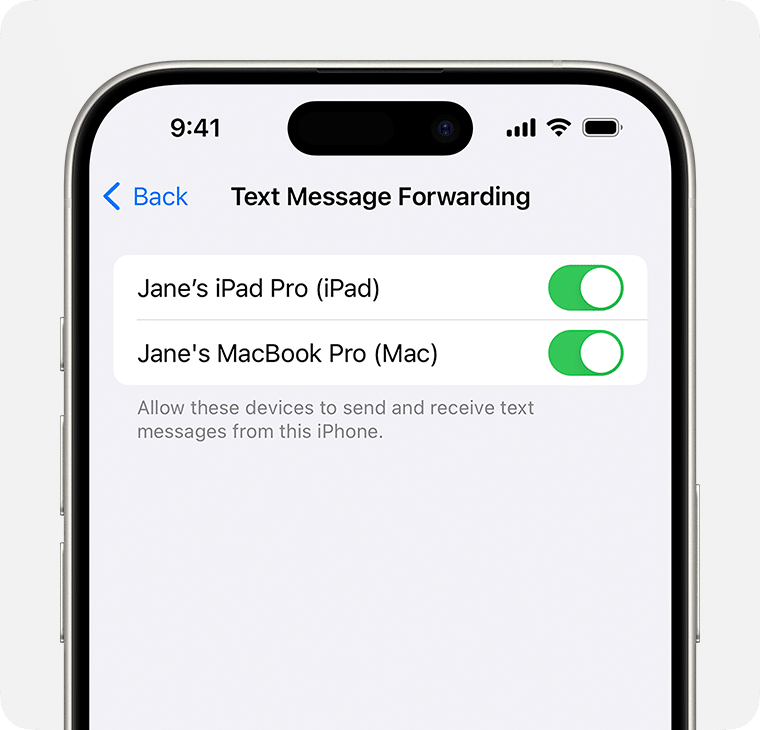
Steps
- Open Settings
- Tap Messages
- Tap Text Message Forwarding
- Find your iPad in the list
- Turn on the toggle
- Enter the verification code that appears on your iPad
Your iPhone now relays SMS and MMS messages to your iPad.
4. Ensure Both Devices Are Connected
Text Message Forwarding requires:
- Active Wi-Fi or Bluetooth
- Devices powered on
- Stable connection between them
Apple Continuity routes messages through local networks.
How To Send an SMS From iPad to Android Device
Once enabled, the process is identical to sending any iMessage.
Steps
- Open the Messages app
- Start a new conversation
- Enter the Android phone number
- Type your message
- Tap Send
Details: The text bubble appears green, confirming it is an SMS. Blue bubbles indicate iMessage and will not reach Android.
Limitations When Sending SMS From iPad to Android
Text Message Forwarding works well but includes several limitations:
- The iPhone must stay powered on
- The iPhone must have an active carrier plan
- Messages stop working if iPhone battery dies
- Messages stop if iPhone leaves the network
- SMS only supports basic text (no high-quality media)
- MMS quality may compress significantly
Your iPad depends completely on your iPhone for Android messaging.
Can You Send SMS From iPad Without an iPhone?
No. Without an iPhone, your iPad cannot send SMS to Android devices.
However, you can send messages using:
- WhatsApp Web (if linked to a phone)
- Telegram
- Messenger
- Google Chat
- Slack
These are internet-based services, not SMS.
Troubleshooting: SMS Not Working From iPad to Android
If SMS fails, follow these fixes.
1. Re-enable Text Message Forwarding
- Go to Settings → Messages → Text Message Forwarding
- Turn the iPad toggle off → on
- Re-enter verification code
2. Restart Both Devices
Restarting resets Continuity services.
3. Check iPhone Cellular Signal
iPhone must have a strong carrier connection.
4. Disable and Re-enable iMessage
This resets routing.
5. Check Apple ID Sync
Both devices must remain logged into one Apple ID.
6. Update iPadOS and iOS
Outdated software often interrupts Continuity features.
Frequently Asked Questions
Can Cellular iPads Send SMS Directly?
No, Even cellular iPad models do not include the radio hardware needed for SMS communication. Cellular iPads use data only.
Can an iPad receive SMS from Android phones?
Yes, but only when paired with an iPhone using Text Message Forwarding.
Why are my messages green on iPad?
Green messages indicate SMS or MMS sent through your iPhone.
Can I send photos to Android from iPad?
Yes, but photos are compressed because MMS has size limits.
Can I send SMS using eSIM on iPad?
No, eSIM on iPads provides data only.
Does the Android user need any special app?
No, They receive regular SMS.
Conclusion
You can send an SMS from iPad to Android devices only when your iPad routes the message through a paired iPhone using Text Message Forwarding. iPads cannot send SMS independently because they lack SMS hardware and depend on iPhone’s carrier connection. Once configured, your iPad sends and receives SMS seamlessly while maintaining full compatibility with Android phones.
You can also check out how to change the date and time on your iPad in our other article.

Ben Scott is a prominent technology journalist and reviewer, specializing in tablet devices. He is known for his comprehensive and unbiased reviews of tablets from various manufacturers.
With a deep understanding of tablet technology, including hardware components, operating systems, and software applications, Scott provides clear and informative reviews accessible to readers of all levels of technical expertise.
His attention to detail and in-depth analysis have earned him a loyal following of readers.