
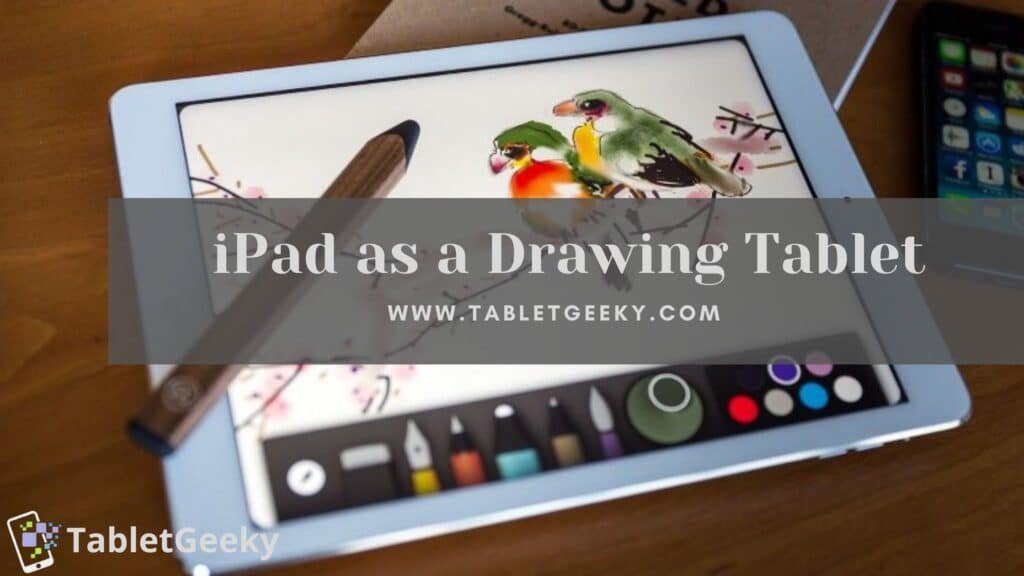
Learning how to use an iPad as a drawing tablet transforms it into a professional-grade digital canvas for artists, illustrators, and designers. The iPad combines a powerful processor, high-resolution display, and Apple Pencil precision to replicate natural sketching and painting. With the right setup, users can connect it to Mac or PC systems or draw directly using creative apps without any computer connection.
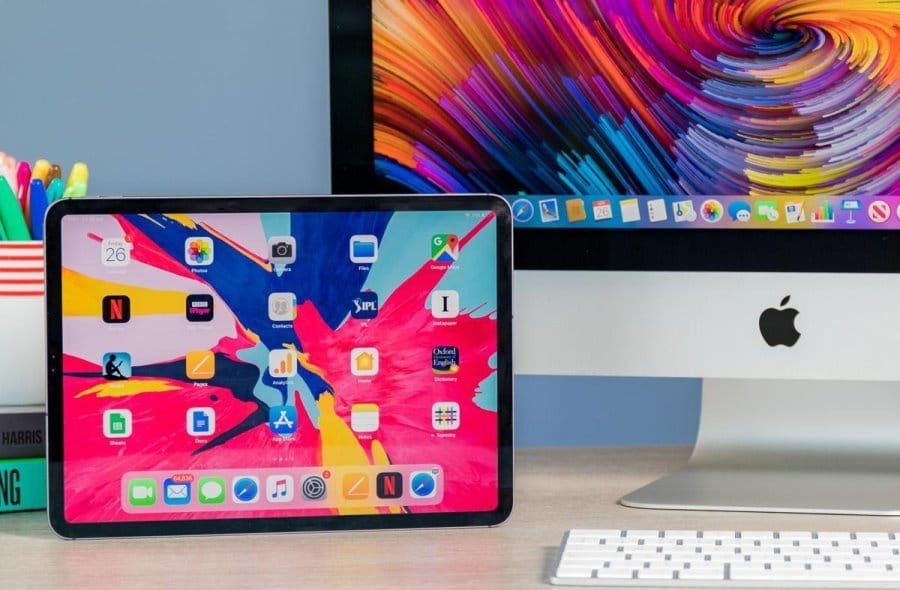
Table of Contents
Understanding iPad as a Drawing Tablet
When you use an iPad as a drawing tablet, it operates as both a standalone digital art device and a wireless pen display for desktop computers. Unlike standard graphics tablets that rely entirely on PCs, the iPad merges display, stylus, and computing power into one portable device.
Its Liquid Retina display ensures vivid colors, ultra-low latency, and perfect touch tracking. Combined with the Apple Pencil, it delivers real-time pressure sensitivity and tilt recognition. These capabilities make it ideal for sketching, painting, photo retouching, and 3D design tasks.
Why Use an iPad as a Drawing Tablet
Artists choose to use an iPad as a drawing tablet because it provides freedom, flexibility, and professional precision. The Apple Pencil replicates natural pen strokes, offering dynamic line variation through tilt and pressure control.
Apps such as Procreate, Adobe Fresco, and Affinity Designer offer powerful tools equivalent to desktop software. Each app supports exporting in professional file types like PSD, PNG, and TIFF, ensuring that artwork transfers seamlessly between iPad and computer environments.
Using the iPad as a Standalone Drawing Tablet
The easiest way to use an iPad as a drawing tablet is independently, without connecting it to another device. This method is ideal for mobile artists who prefer to draw, paint, or design anywhere.
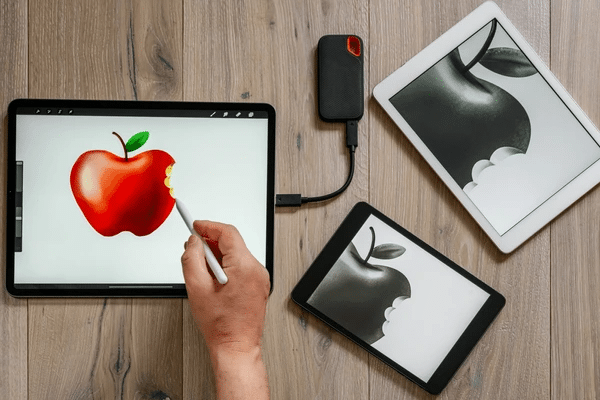
To begin creating artwork:
- Connect the Apple Pencil to the iPad.
- Open a drawing app such as Procreate, Adobe Fresco, or Concepts.
- Create a blank canvas and start sketching using the Pencil’s pressure and tilt control.
- Adjust brush types, layer effects, and opacity levels to refine your art.
The iPad’s portability and precision turn it into an all-in-one sketchbook suitable for on-the-go creation.
Using an iPad as a Drawing Tablet for Mac
Apple devices include Sidecar and Duet Pro, two professional tools that allow you to use an iPad as a drawing tablet for Mac. Both mirror or extend the Mac desktop to the iPad screen, giving artists direct stylus input through the Apple Pencil.

Using Sidecar
Sidecar is Apple’s built-in feature for macOS and iPadOS that transforms the iPad into a secondary display and pressure-sensitive drawing surface.
To set up Sidecar:
- Sign in to both devices using the same Apple ID.
- Turn on Bluetooth and Wi-Fi on both the Mac and iPad.
- On the Mac, go to System Settings → Displays → Add Display → Select iPad.
- The iPad instantly becomes a responsive drawing surface mirroring the Mac screen.
Once connected, open macOS creative apps like Adobe Photoshop, Illustrator, or Corel Painter. The Apple Pencil performs precise stylus functions, while gestures on the iPad control zoom and rotation.
Using Duet Pro
Duet Pro enhances the experience further for professional creators who want smoother stylus control and additional customization. Originally developed for screen mirroring, Duet Pro now supports advanced Apple Pencil responsiveness, full pressure sensitivity, and customizable shortcuts.
To use Duet Pro for Mac:
- Install Duet Pro for iPad from the App Store.
- Install the Duet companion app on your Mac.
- Connect both devices using a USB-C or Lightning cable.
- Launch Duet Pro to mirror the Mac display onto the iPad.
Duet Pro offers ultra-low latency drawing performance and supports Apple Pencil tilt, making it suitable for apps such as Adobe Illustrator, Krita, and Blender. Its adjustable settings allow fine-tuning of brush response and touch gestures, giving artists the same control as premium drawing tablets like Wacom or XP-Pen.
Both Sidecar and Duet Pro transform the iPad into a professional creative workspace when linked to Mac systems.
Using an iPad as a Drawing Tablet for Windows PC
To use an iPad as a drawing tablet with a Windows PC, software solutions such as Astropad Studio, Duet Display, and EasyCanvas create wireless or wired mirroring connections between both devices.
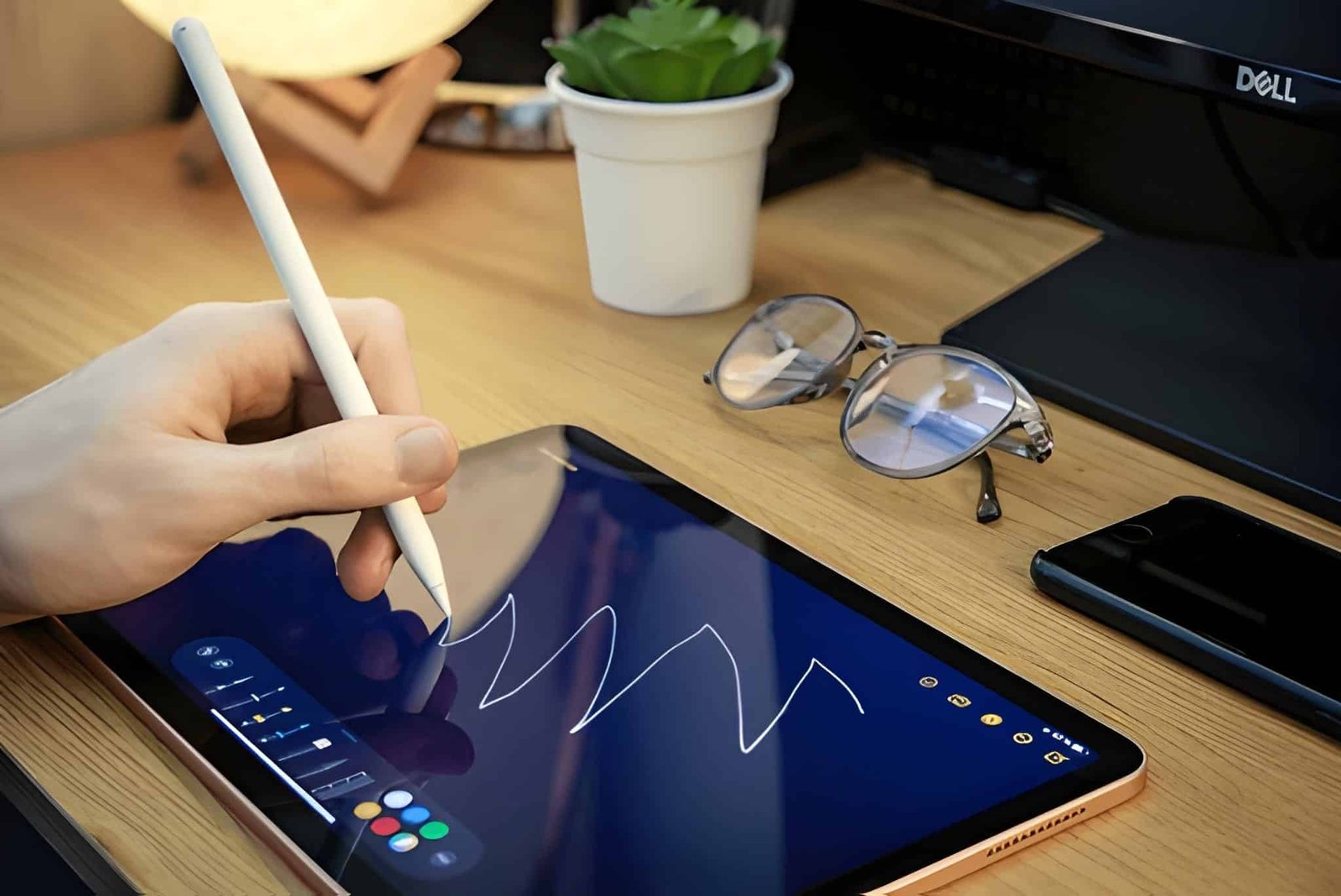
To connect using these tools:
- Install the desktop companion app on the PC.
- Download the corresponding iPad app from the App Store.
- Link both devices via Wi-Fi or USB cable.
- Launch the app to project the computer screen onto the iPad.
Once connected, open any Windows design software like Photoshop, Krita, or Clip Studio Paint. The Apple Pencil now functions as a pressure-sensitive stylus. Latency is minimal, and brush input feels natural for precision work.
Astropad and Duet Display include customizable shortcuts, pen smoothing, and lag-free mirroring for professional use.
Choosing the Right App to Use an iPad as a Drawing Tablet
The App Store hosts a wide selection of creative tools that make the most of Apple Pencil’s precision. Recommended apps include:
- Procreate – a professional art suite offering advanced brushes, layering, and time-lapse recording.
- Adobe Fresco – ideal for realistic watercolor, oil, and live brush effects.
- Affinity Designer – perfect for vector-based illustrations and typography.
- Concepts – an infinite canvas app for designers and architects.
- Clip Studio Paint – comprehensive drawing software for comics, manga, and animation.
Each app optimizes Apple Pencil sensitivity and integrates with desktop platforms for complete creative flexibility.
Optimizing iPad Settings for Drawing Performance
To maximize accuracy when you use an iPad as a drawing tablet, adjust key system settings. Enable Do Not Disturb mode to avoid notifications during drawing sessions. Activate True Tone and Color Calibration for consistent color output across screens.
Reducing display brightness under natural lighting helps simulate the feel of traditional sketching. Applying a matte screen protector enhances friction between stylus and glass, improving control and creating a paper-like texture.
Calibrating and Maintaining Apple Pencil Performance
The Apple Pencil automatically connects to the iPad via Bluetooth. Verify the connection in Settings → Bluetooth → Apple Pencil. Some apps offer custom calibration to adjust brush pressure, smoothing, and palm rejection levels.
For optimal results, clean the Pencil tip regularly and replace it when signs of wear appear. Keeping the Pencil charged prevents input lag during long art sessions.
Using Accessories When You Use an iPad as a Drawing Tablet
Accessories enhance comfort and stability during drawing sessions. A tablet stand or adjustable arm maintains proper posture and angle alignment. Keyboard cases support app shortcuts, while glove accessories prevent accidental screen touches.
Protective sleeves, pencil grips, and carrying cases keep both devices safe during transport. Combining these accessories creates a fully functional mobile studio.
Transferring Art Between iPad and Computer
When you use an iPad as a drawing tablet, transferring files to other devices becomes essential. Use AirDrop for instant Mac transfers or iCloud Drive for automatic synchronization.
For Windows systems, connect via USB and use iTunes or third-party managers for file import. Drawing apps like Procreate and Affinity include direct export options to Dropbox, OneDrive, and Google Drive, ensuring seamless file management.
Troubleshooting When Using an iPad as a Drawing Tablet
If Sidecar or Duet Pro disconnects unexpectedly, confirm that both devices share the same Apple ID and that Wi-Fi or USB connections are stable. Restarting both usually restores synchronization.
For Apple Pencil connectivity issues, unpair and re-pair it from Bluetooth settings. Clean the tip and restart the drawing app to reset stylus input calibration.
If latency appears, close background apps or switch to a wired connection through Duet Pro for smoother performance.
Best Practices When You Use an iPad as a Drawing Tablet
Charge both iPad and Apple Pencil before long sessions. Keep device software updated to ensure maximum compatibility with creative apps. Store backups of artwork on cloud platforms and export layered files for future editing.
Clean the screen regularly using a microfiber cloth to maintain sensitivity. Enable Time-Lapse Recording in Procreate to track drawing progress efficiently.
Advantages When You Use an iPad as a Drawing Tablet
Using an iPad as a drawing tablet offers unmatched precision, flexibility, and portability. Artists benefit from desktop-level creative power in a lightweight format. The Apple Pencil’s responsiveness and natural pen behavior deliver true-to-life drawing comfort.
Unlike traditional pen tablets that require permanent desk setups, the iPad supports mobility without sacrificing performance. It combines the freedom of paper sketching with the digital precision of modern design software.
Frequently Asked Questions
Can I use an iPad as a drawing tablet for Mac and PC?
Yes. Mac users can use Sidecar or Duet Pro, while PC users can connect via Astropad or EasyCanvas.
Is Apple Pencil necessary to use an iPad as a drawing tablet?
Yes. The Apple Pencil provides pressure and tilt detection essential for professional-level artwork.
Do all iPad models support drawing functions?
All modern iPads compatible with Apple Pencil work for drawing, though iPad Pro models deliver the best performance.
Does using iPad as a drawing tablet require internet access?
No. Most drawing features work offline, but cloud sync and file transfer need internet.
Which is better for Mac users – Sidecar or Duet Pro?
Sidecar is built-in and convenient, while Duet Pro provides enhanced sensitivity and customization ideal for professional illustrators.
Final Overview
Learning how to use an iPad as a drawing tablet unlocks endless creative potential. Whether connected through Sidecar or Duet Pro for Mac, or via Astropad for Windows, the iPad delivers professional-level drawing precision. Standalone apps like Procreate and Adobe Fresco offer complete studios directly on the device.
The iPad remains the most versatile drawing platform in 2026, combining accuracy, speed, and freedom in one portable digital workspace.

Ben Scott is a prominent technology journalist and reviewer, specializing in tablet devices. He is known for his comprehensive and unbiased reviews of tablets from various manufacturers.
With a deep understanding of tablet technology, including hardware components, operating systems, and software applications, Scott provides clear and informative reviews accessible to readers of all levels of technical expertise.
His attention to detail and in-depth analysis have earned him a loyal following of readers.