

Knowing how to use AirPlay on an iPad allows you to stream videos, music, photos, and screen content wirelessly to compatible devices like Apple TV or smart TVs. AirPlay enhances productivity, entertainment, and collaboration by mirroring or extending your iPad’s screen in real time. Whether sharing presentations, watching movies, or playing games, AirPlay provides a seamless, high-quality connection across Apple’s ecosystem.
Table of Contents
What Is AirPlay on an iPad?
AirPlay on an iPad is Apple’s wireless streaming protocol that connects iPads, iPhones, and Macs to other AirPlay-compatible devices. It transmits video, audio, or screen content without cables, using Wi-Fi to deliver smooth, high-resolution playback.
Developed for convenience, AirPlay supports both media streaming (sending specific content like videos or songs) and screen mirroring (replicating your iPad’s display). It works perfectly with Apple TV, HomePod, and most AirPlay 2-enabled smart TVs from brands like Samsung, LG, Sony, and Vizio.
Why Use AirPlay on an iPad
Using AirPlay on an iPad eliminates the need for adapters, cables, or third-party apps. It’s designed to deliver fast, stable, and secure content sharing. Whether you’re showcasing a project, teaching a lesson, or streaming a video, AirPlay enhances viewing quality and convenience.
Key benefits include:
- Wireless streaming: Instant playback of media on larger displays.
- Multi-room audio: Stream music across multiple AirPlay 2 speakers simultaneously.
- Secure connection: Uses encrypted data transmission to protect your content.
- Easy collaboration: Enables group viewing, presentations, and screen demonstrations.
AirPlay integrates directly into iPadOS, ensuring smooth setup and compatibility across all modern iPad models.
Requirements to Use AirPlay on an iPad
Before you start using AirPlay, confirm that both your iPad and receiving device meet these requirements:
- Both devices must be connected to the same Wi-Fi network.
- The iPad must run iPadOS 13 or later.
- The receiving device must support AirPlay 2 (Apple TV HD, Apple TV 4K, or AirPlay-enabled smart TV).
For older models, Apple TV acts as the most reliable receiver. Keeping software updated ensures maximum compatibility and performance.
How to Use AirPlay on an iPad to Stream Video or Music
Step 1: Connect Both Devices to Wi-Fi
Ensure your iPad and the target device (Apple TV or AirPlay-enabled TV) are connected to the same wireless network. This connection allows AirPlay to detect available devices automatically.
Step 2: Access AirPlay Option in the App
Open the app containing the content you want to share, such as YouTube, Apple Music, Photos, or Netflix. Tap the AirPlay icon (a rectangle with an upward arrow) usually found in the playback controls.
Step 3: Select the Device
A list of nearby AirPlay-compatible devices appears. Tap the desired device name (for example, “Living Room Apple TV”) to begin streaming.
Step 4: Start Streaming
The content instantly displays on your selected TV or speaker. Use the iPad as a remote control to pause, rewind, or adjust volume.
Streaming this way sends only the media file, not the entire screen, which saves battery and ensures smoother performance.
How to Use AirPlay on an iPad to Mirror the Screen
Screen mirroring displays everything from your iPad including apps, browser pages, and presentations on another screen.
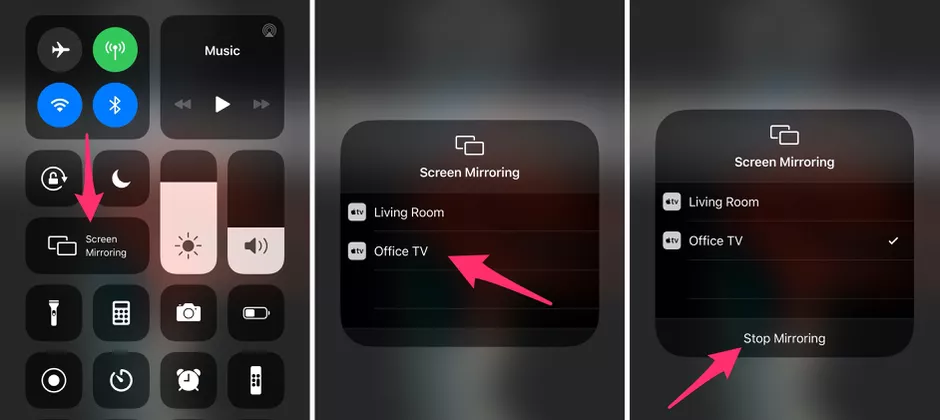
Step 1: Open Control Center
Swipe down from the upper-right corner of the iPad screen.
Step 2: Tap Screen Mirroring
Select Screen Mirroring (the icon with overlapping rectangles).
Step 3: Choose the AirPlay Device
From the list, select your Apple TV or AirPlay-compatible Smart TV.
Step 4: Enter the Code
If prompted, enter the AirPlay passcode displayed on the TV into your iPad to confirm the connection.
Step 5: Mirror and Control
Your iPad screen now appears on the TV. You can navigate, present slides, or demonstrate apps in real time. To stop mirroring, open Control Center again and tap Stop Mirroring.
Mirroring is ideal for educational sessions, business meetings, and creative collaborations.
How to Use AirPlay on an iPad Without Apple TV
If you don’t own an Apple TV, you can still use AirPlay on an iPad with third-party smart TVs that support AirPlay 2.
Option 1: AirPlay-Enabled Smart TVs
Brands like Samsung, LG, Sony, Vizio, and TCL integrate AirPlay 2 natively. Simply connect the iPad and TV to the same network, then follow the mirroring or streaming steps.
Option 2: Mac or Windows PC Using Third-Party Tools
If your computer supports AirPlay reception, use software such as Reflector, ApowerMirror, or AirServer to receive AirPlay streams from the iPad. This setup allows recording or displaying the iPad on desktop screens.
How to Use AirPlay on an iPad for Audio Streaming
AirPlay extends beyond video to deliver immersive sound.
Step 1: Open Control Center
Swipe down from the top-right corner of your iPad.
Step 2: Tap the AirPlay Audio Icon
In the music control section, tap the AirPlay symbol.
Step 3: Select a Speaker or Device
Choose one or more AirPlay 2-compatible speakers such as HomePod, Bose SoundTouch, or Sonos One.
Step 4: Play Music Wirelessly
Your selected devices play audio in perfect sync across rooms, creating a seamless multi-speaker experience.
This feature is ideal for parties, home offices, or entertainment systems using multiple speakers.
How to Use AirPlay on an iPad for Presentations
Presenters and educators frequently use AirPlay on an iPad to display slides, documents, and live demonstrations on large screens.
To use it efficiently:
- Connect the iPad to an Apple TV or AirPlay-enabled projector.
- Open presentation software like Keynote, PowerPoint, or Google Slides.
- Tap Play Slideshow → AirPlay Display and select your receiver.
The iPad acts as a remote control while the screen displays the full presentation wirelessly. This setup eliminates HDMI cables and promotes easy mobility during talks.
Troubleshooting AirPlay on an iPad
Even with stable networks, AirPlay may occasionally encounter connection issues. Below are common problems and solutions.
AirPlay Device Not Showing Up
- Ensure both devices use the same Wi-Fi network.
- Restart the iPad and receiver device.
- Verify that AirPlay is enabled in the receiver’s settings.
Audio or Video Lag
- Move both devices closer to the Wi-Fi router.
- Disconnect unused devices from the network to free bandwidth.
- Switch to a 5GHz Wi-Fi frequency for improved streaming speed.
AirPlay Disconnects Frequently
- Update iPadOS and Apple TV firmware.
- Reset network settings if instability continues.
- Use a wired Ethernet connection for the receiving device.
Proper maintenance and updates ensure consistent AirPlay performance.
Frequently Asked Questions
Can I use AirPlay on an iPad with any smart TV?
Only AirPlay 2-compatible TVs support direct connection. Others may require an Apple TV or third-party receiver app.
Does AirPlay reduce video quality?
No. AirPlay maintains full HD or 4K resolution, depending on the source file and receiving device.
Can I AirPlay from iPad to Windows PC?
Yes. Use compatible software like AirServer or Reflector to receive AirPlay streams on a PC.
Is Wi-Fi necessary for AirPlay?
Yes. AirPlay requires a shared Wi-Fi network to connect sender and receiver devices.
Can I use AirPlay on an iPad and browse simultaneously?
Yes. You can multitask, browse, or use other apps while media plays via AirPlay in the background.
Best Practices for Using AirPlay on an iPad
- Keep both devices close to the router for stable performance.
- Ensure AirPlay settings are enabled on the receiver.
- Update iPadOS regularly for bug fixes and AirPlay improvements.
- Use Do Not Disturb mode to prevent notifications during presentations.
- Disconnect AirPlay when not in use to conserve battery.
These practices ensure smooth streaming and reduce connection drops during important sessions.
Conclusion
Knowing how to use AirPlay on an iPad unlocks the full potential of Apple’s wireless ecosystem. Whether mirroring screens for work, streaming movies to smart TVs, or playing music through multiple speakers, AirPlay enhances functionality and convenience.
With just a few taps, your iPad becomes a versatile entertainment and productivity hub, connecting seamlessly to every AirPlay-compatible device in your space.

Howdy Geeks, I'm Andrew, a young passionate blogger, Tech Freak & a Gadget Lover. I help people in buying them the best tablet devices