

Updating an Android tablet installs the latest software version, strengthens security, improves performance, and adds new features. Each manufacturer such as Samsung, Lenovo, Xiaomi, and Huawei releases updates to keep tablets fast and stable. Regular updates ensure smoother operation, better compatibility, and longer device life.
In this guide I have given many methods to update android tablets. You can choose any method according to your understanding.
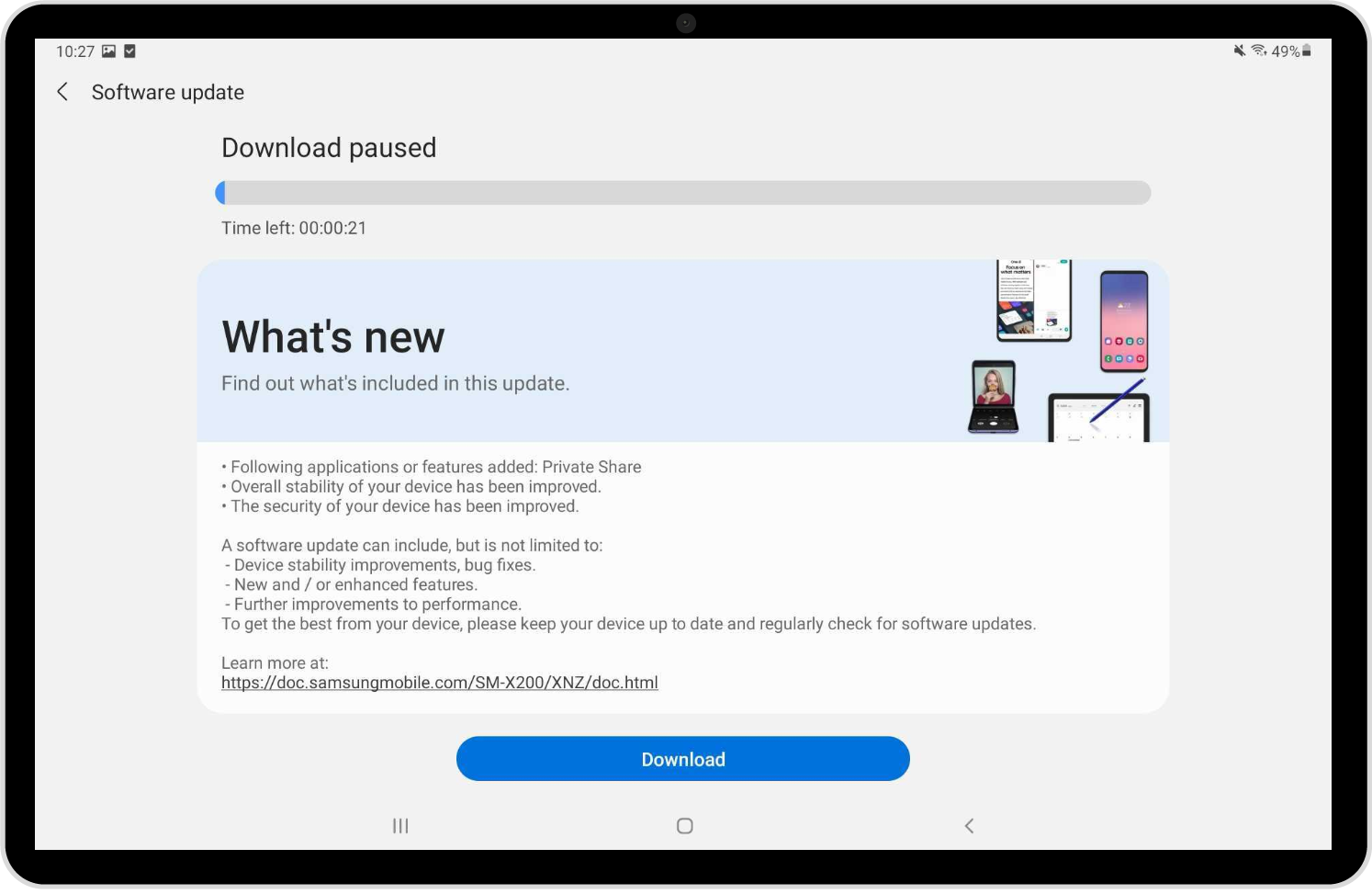
Table of Contents
Understanding Android Tablet Updates
An Android update is a system improvement that replaces outdated software with the newest firmware. Updates contain bug fixes, visual interface upgrades, and security patches. Google releases Android versions, while device manufacturers customize and deliver them to users.
Each update improves speed, app performance, and power efficiency. Security patches eliminate vulnerabilities that hackers can exploit, protecting stored information and online accounts.
Why Updating an Android Tablet Is Important
Updating improves system performance, battery optimization, and compatibility with apps. It also increases security by closing system loopholes that malware might target. Without updates, the tablet gradually becomes slower and more exposed to security threats.
Newer Android versions often include upgraded notification handling, redesigned settings menus, and optimized multitasking. These refinements create a smoother user experience and extend the tablet’s lifespan.
Preparation Before Updating
Before updating, prepare the tablet to ensure safe installation. Connect the tablet to a Wi-Fi network to prevent interruptions during download. Make sure the battery level is at least half full or keep the device plugged into a charger.
Backing up files through Google Drive, OneDrive, or Dropbox prevents data loss if the update resets certain settings. Close running apps and clear unused background processes for maximum installation efficiency.
Methods to Update Android Tablet
Method 1: Update an Android Tablet Automatically
Automatic updates install software in the background once the tablet connects to Wi-Fi. Follow these steps to enable automatic updates:
- Open the Settings app.
- Tap System or Software Update, depending on the brand.
- Select Auto Download over Wi-Fi or Auto Update.
- Confirm activation.
After enabling this option, the tablet checks regularly for new updates and installs them when connected to Wi-Fi and idle. Automatic updating ensures the system stays current without manual checks.
Method 2: Update an Android Tablet Manually
Manual updates give users control over when the system installs new firmware. The process remains simple and safe:
- Open Settings on the tablet.

- Scroll down and select System or About Tablet.
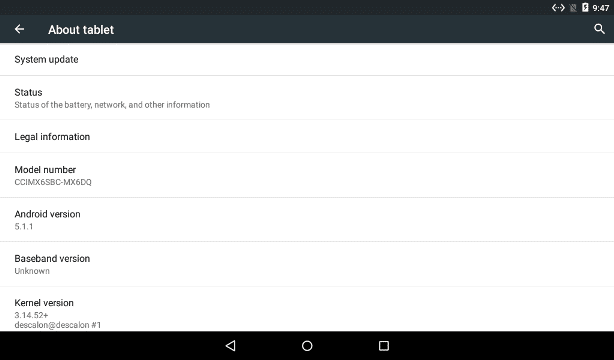
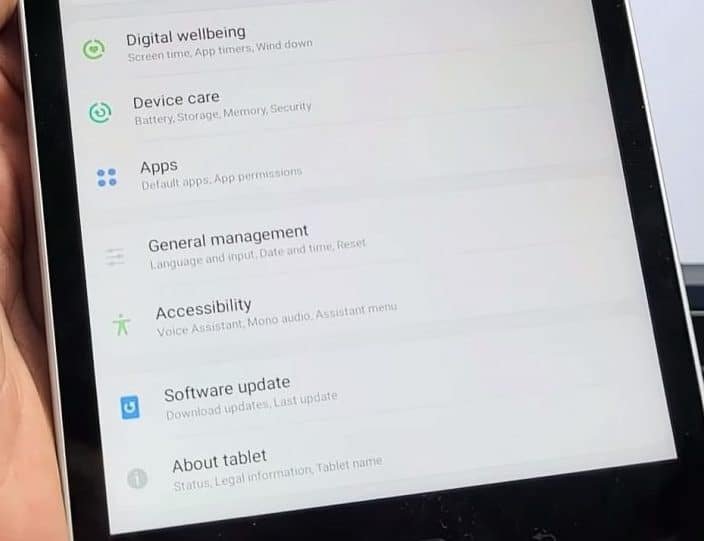
- Tap Software Update or System Update.
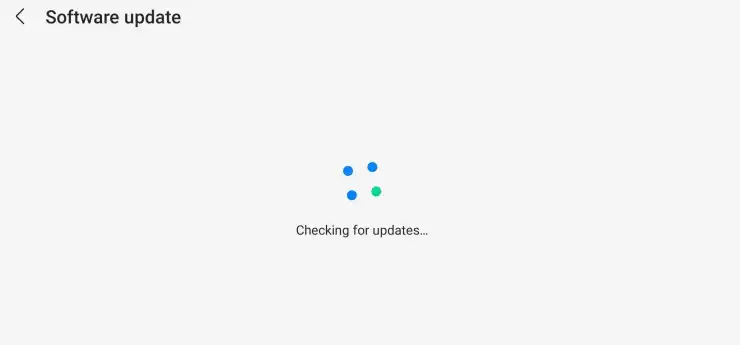
- Choose Check for Updates.
- If an update is available, tap Download and Install.
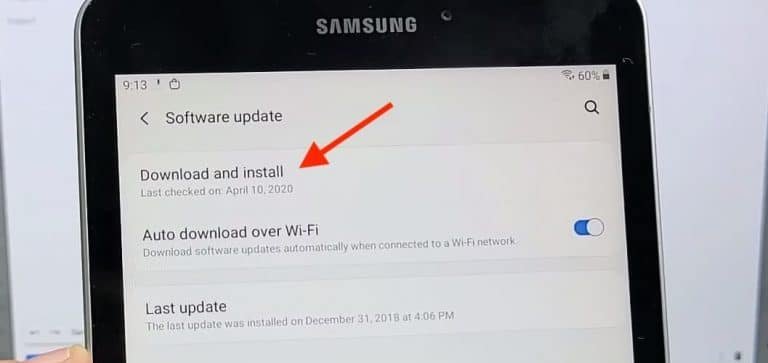
- Wait for the update to download, then follow on-screen prompts to reboot and apply it.
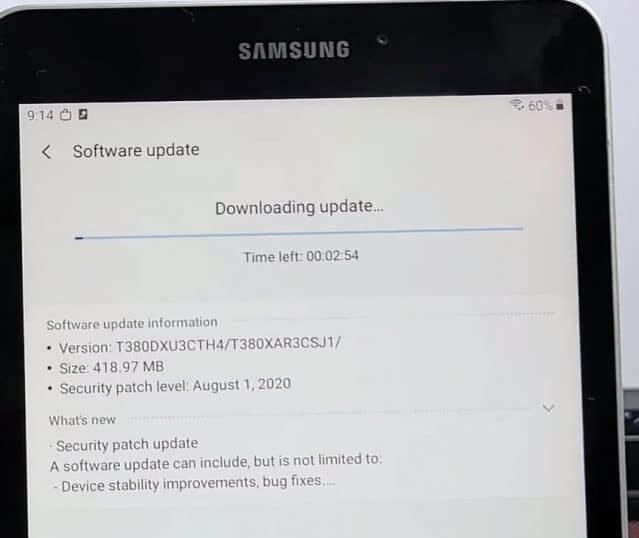
The tablet restarts during installation and completes the process automatically. After rebooting, the latest Android version becomes active.
Method 3: Update Using a Computer Connection
If over-the-air updating fails, a computer connection offers another option. Use the manufacturer’s desktop software such as Samsung Smart Switch or Lenovo Rescue and Smart Assistant.
To update through a computer:
- Download the manufacturer’s official software tool.
- Install and open it on a Windows or macOS computer.
- Connect the tablet via USB cable.
- The software automatically detects available updates.
- Select Update and follow on-screen instructions.
The computer downloads and transfers the firmware to the tablet, completing installation safely.
How to Update Older Android Tablets
Older tablets may stop receiving updates after several years. If official support has ended, users can still install updates manually by downloading the latest firmware package from the manufacturer’s website.
Advanced users sometimes install custom ROMs such as LineageOS to continue using newer Android versions. However, this process requires experience and can void warranties. For most users, official updates remain the most reliable and secure method.
Checking the Android Version After Updating
After completing the update, verify that it installed correctly.
- Open Settings.
- Select About Tablet.
- Tap Software Information.
The current Android version and security patch date appear here. This verification confirms that the latest firmware is active and security protection is current.
Troubleshooting Update Issues
If updates fail, several factors may cause the issue. Insufficient storage, poor Wi-Fi connection, or a corrupted cache can interrupt installation. Freeing up space by deleting unused files often solves the problem.
Restarting the tablet or switching to another Wi-Fi network helps restore download stability. Clearing the cache partition through recovery mode sometimes resolves update errors. If the problem persists, using the manufacturer’s computer-based tool completes the update successfully.
Optimizing the Tablet After Updating
After installation, the system reconfigures settings automatically. Open several apps to ensure smooth performance and proper compatibility. Re-adjust brightness, wallpaper, and notification preferences that might have reset.
Deleting leftover update files frees storage space, while rebooting once more stabilizes firmware operations. These actions help the device operate at full speed after the update.
Benefits of Keeping the Tablet Updated
Keeping the tablet updated enhances reliability, maintains fast performance, and ensures compatibility with the latest apps. Updated tablets boot quickly, multitask smoothly, and deliver improved battery life.
Security patches protect data, while newer Android versions provide improved user interfaces and enhanced AI-based performance management. Regular updates also improve connectivity stability for Wi-Fi, Bluetooth, and cellular networks.
Frequently Asked Questions
Are Android tablet updates free?
Yes. All official Android updates are free and provided directly by Google or the device manufacturer.
Does updating delete data?
No. Standard updates preserve personal files and apps, though backing up data remains a good precaution.
What if my tablet says no updates are available?
Some models reach the end of support. Manufacturers stop updates when hardware no longer meets performance requirements.
Can I use my tablet during an update?
No. The tablet must remain idle during installation to prevent corruption. Once complete, it restarts automatically.
How long does an Android update take?
Duration depends on update size and internet speed. Typically, the process completes within a short session.
Security and Performance Advantages
Every Android update strengthens tablet protection by patching vulnerabilities that hackers target. New encryption standards safeguard data and enhance system stability. Regular updates maintain compatibility with banking, email, and productivity apps that rely on secure APIs.
System improvements increase responsiveness and reduce background memory drain. These optimizations ensure that the tablet stays reliable and responsive for years.
Final Overview
Updating an Android tablet maintains peak performance, strengthens security, and ensures long-term usability. Whether performed automatically or manually, keeping the software current prevents glitches and preserves efficiency.
A regularly updated tablet delivers faster speed, improved app stability, and the best protection available. Performing updates routinely guarantees that the Android system remains modern, reliable, and safe for every user.
In case you have forgotten the password of your tablet and you don’t want to lose your data to unlock the tablet, you can check a guide on this topic “how to unlock android tablet without losing data.”

Ben Scott is a prominent technology journalist and reviewer, specializing in tablet devices. He is known for his comprehensive and unbiased reviews of tablets from various manufacturers.
With a deep understanding of tablet technology, including hardware components, operating systems, and software applications, Scott provides clear and informative reviews accessible to readers of all levels of technical expertise.
His attention to detail and in-depth analysis have earned him a loyal following of readers.