

Charging Apple Pencil increases performance, improves connection stability, and maintains consistent low-latency drawing. Charging Apple Pencil correctly prevents pairing errors, input delay, and sudden battery drops. This guide explains how to charge Apple Pencil (1st Gen, 2nd Gen, and USB-C version) with clear, detailed steps and precise instructions.
Table of Contents
Identify Your Apple Pencil Model First
Apple has three Apple Pencil versions, each with a different charging method. You must identify the correct model before charging.
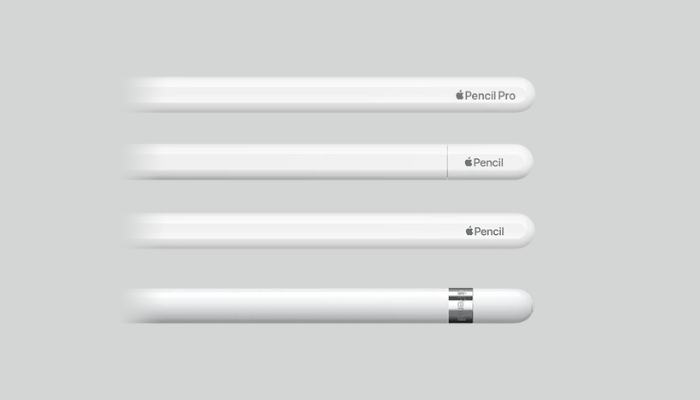
Apple Pencil (1st Generation)
- Smooth glossy body
- No flat side
- Removable cap with hidden Lightning connector
Apple Pencil (2nd Generation) & Apple Pencil Pro
- Matte finish
- One flat side
- No ports or caps
- Charges magnetically
Apple Pencil (USB-C)
- Matte cylindrical body
- USB-C port on top
- No magnetic charging
Once you know the model, follow the exact charging steps below.
How to Charge Apple Pencil (1st Generation)
Apple Pencil (1st Gen) uses a Lightning connector hidden under the removable cap. It charges either directly through the iPad or using an adapter.
Method 1: Charge Through iPad Lightning Port
This is the fastest charging method. You can charge Apple Pencil using iPhone also.
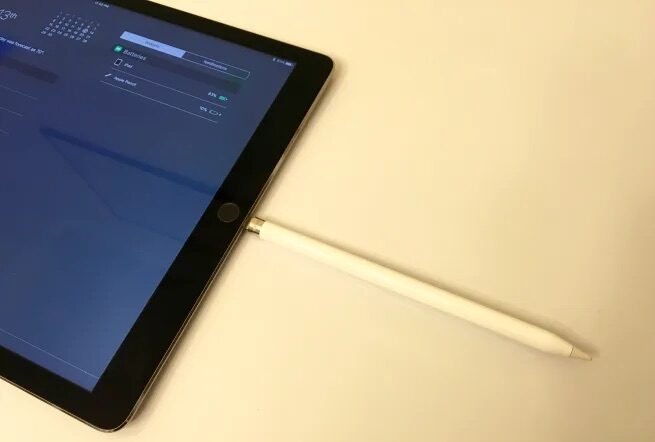
Steps:
- Remove the silver cap from Apple Pencil.
- Reveal the Lightning connector.
- Plug the connector directly into the iPad’s Lightning port.
- Wait for the charging alert to appear on-screen.
Details:
- The connection is secure and transfers power quickly.
- A 15-second charge gives about 30 minutes of use.
- A full charge completes in around 10–12 minutes.
Method 2: Charge Using the Lightning Adapter
Use this method if you prefer cable charging.
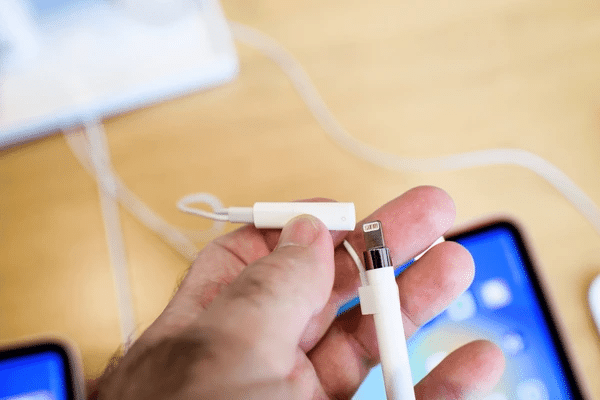
Steps:
- Remove the cap from Apple Pencil.
- Find the Lightning female-to-female adapter (included in the box).
- Insert Apple Pencil into one side.
- Insert a standard Lightning cable into the other side.
- Connect the cable to a charger or power source.
Details:
- This keeps the iPad free while charging.
- It protects the iPad port from strain during long charges.
How to Charge Apple Pencil (2nd Generation) & Apple Pencil Pro
Apple Pencil (2nd Gen) and Apple Pencil Pro charges magnetically on the side of compatible iPads. There are no cables, no ports, and no adapters.
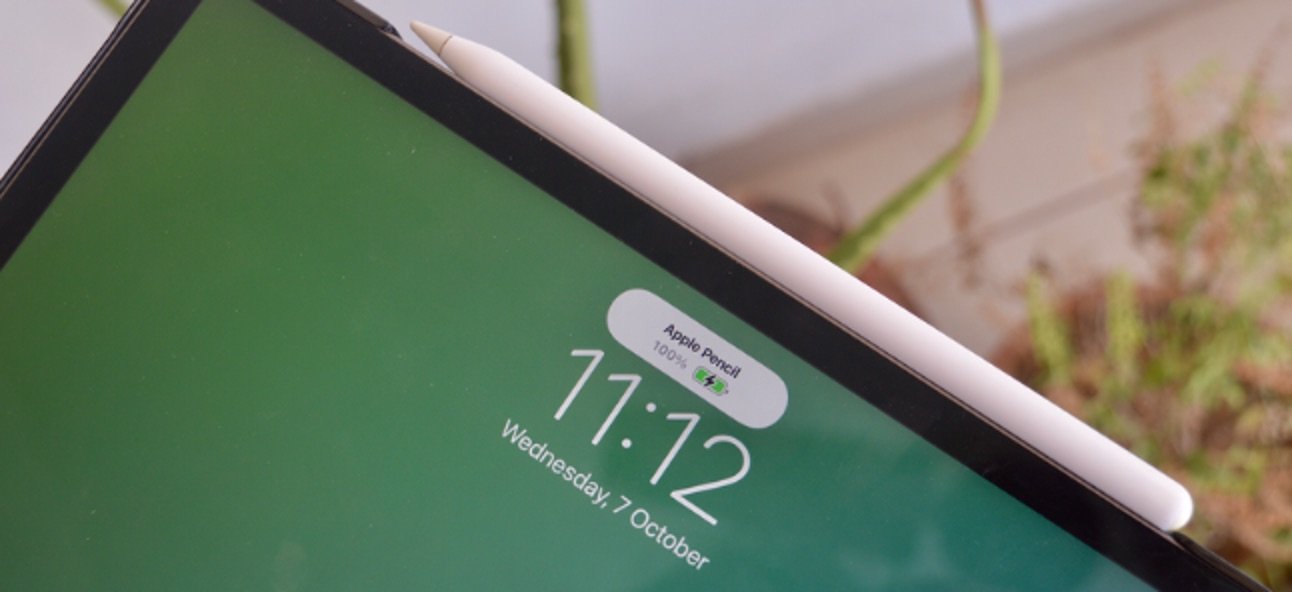
Method: Magnetic Charging on iPad
Steps:
- Find the flat side of Apple Pencil.
- Attach this flat side to the right edge of the iPad (Magnetic strip).
- Wait for the “Charging” animation to appear.
Details:
- Magnetic charging begins immediately.
- You can continue working while it charges.
- The magnetic connection acts as both charger and holder.
- A quick 2–3 minute charge provides several hours of writing.
This is the simplest charging experience across all stylus devices.
How to Charge Apple Pencil (USB-C)
The newest Apple Pencil version includes a USB-C port for direct charging.
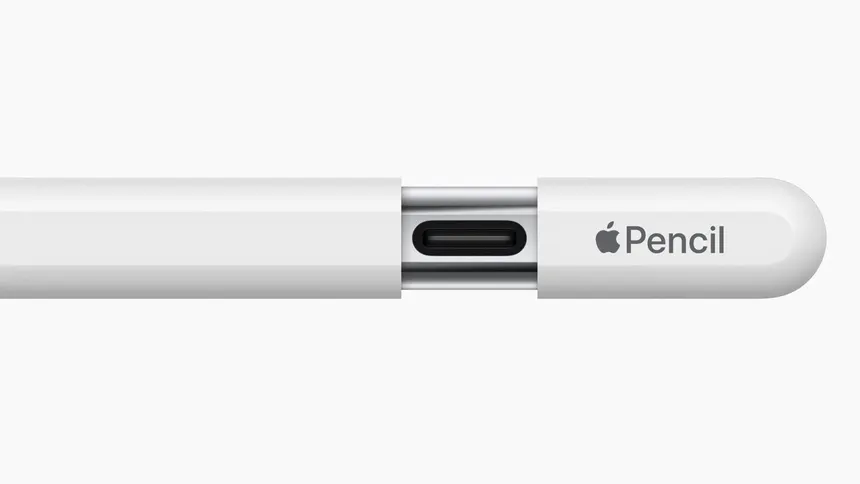
Method: Charge Using USB-C Cable
Steps:
- Remove the small sliding cap on the top of the Apple Pencil.
- Locate the USB-C port inside the slot.
- Connect a USB-C cable to the port.
- Plug the other end into the iPad or any USB-C power adapter.
- Charging begins instantly.
Details:
- Works with USB-C iPads, laptops, and chargers.
- Does not support magnetic charging.
- Charging speed is similar to Apple Pencil 1 via wired connection.
How to Check Apple Pencil Battery Level
Checking battery level prevents unexpected disconnections.
On iPad (for all models):
- Swipe down from the top-right to open Control Center.
- Look at the Batteries widget for Apple Pencil status.
Add Batteries Widget if Missing:
- Hold any empty area on Home Screen.
- Tap + → choose Batteries.
- Add the widget to the screen.
Battery percentage updates instantly whenever Apple Pencil is connected.
Charging Tips for Longer Battery Life
- Keep battery above 20% for stable low-latency performance.
- Avoid storing Apple Pencil completely drained for long periods.
- Clean magnetic charging area (2nd Gen) to keep connection stable.
- Use high-quality USB-C or Lightning cables for safe charging.
- Detach 2nd Gen Pencil if the iPad heats during charging.
- Store 1st Gen Pencil with the cap on to protect the connector.
These habits extend long-term battery health.
Common Charging Problems and Fixes
Apple Pencil not charging on iPad side (2nd Gen)
- Clean the magnetic strip with a microfiber cloth.
- Restart the iPad.
- Reattach Apple Pencil firmly.
1st Gen Pencil not charging through Lightning port
- Try another cable.
- Inspect connector for debris.
- Reboot iPad and reconnect.
USB-C Apple Pencil not charging
- Ensure the cable reaches the port fully.
- Test another USB-C charger.
- Check for broken pins inside the port.
Correct charging behavior usually returns after these quick checks.
Frequently Asked Questions (FAQ)
Can Apple Pencil charge while the iPad is in a case?
Only if the case is designed with a Pencil charging channel. Thick cases block magnetic charging.
How long does a full charge last?
Apple Pencil typically lasts up to 10–12 hours depending on usage intensity.
Can I use Apple Pencil while it charges?
Apple Pencil 1 can be used indirectly while charging through adapter-based setups; Apple Pencil 2 and USB-C must charge separately.
Does fast charging damage Apple Pencil?
No. Apple Pencil uses controlled power regulation to prevent overcharging and overheating.
Can Apple Pencil overcharge if left attached to the iPad?
No. Power stops automatically once battery reaches full capacity.
Why does my Apple Pencil battery drain quickly?
Background Bluetooth connection, weak internal battery, or long periods of inactivity can cause drain. Re-pairing often restores normal behavior.
Can I charge Apple Pencil using iPhone?
Apple Pencil 1 technically fits Lightning ports, but Apple recommends charging only through iPad or adapter to avoid damage.
Does Apple Pencil charge from MacBook USB-C ports?
Yes, the USB-C model charges from any USB-C port. Apple Pencil 1 does not.
Conclusion
Charging Apple Pencil depends entirely on the model. Apple Pencil 1 charges through the Lightning connector or adapter. Apple Pencil 2 charges magnetically on the side of compatible iPads. Apple Pencil USB-C charges through a built-in USB-C port. Understanding how to charge Apple Pencil correctly prevents battery issues, improves performance, and maintains seamless drawing and writing on your iPad.

Ben Scott is a prominent technology journalist and reviewer, specializing in tablet devices. He is known for his comprehensive and unbiased reviews of tablets from various manufacturers.
With a deep understanding of tablet technology, including hardware components, operating systems, and software applications, Scott provides clear and informative reviews accessible to readers of all levels of technical expertise.
His attention to detail and in-depth analysis have earned him a loyal following of readers.